Set up storage
Set up storage
Choose where drawings are kept: DataMagik storage, your own S3 bucket, or a folder on your file server.
Open Documents → CAD Drawings and press Storage settings. You need CAD Drawings - Admin. A company can have several storage locations; each drawing remembers the location it was saved to, so changing the default never moves existing drawings.
Kinds of location
- DataMagik storage: your company's DataMagik S3 storage. It works straight away. Drawings kept here count toward your company's storage usage.
- Your own S3 bucket: a bucket in your AWS account (or another S3-compatible service). Enter the Bucket and Region, and the Credential name of a company credential that holds the bucket's access key and secret; the secret is never shown on this page. An Endpoint is optional and must be a public
https://address. - File server: a folder on your own server, reached through one of your Filesystem Connectors. Choose the connector and, optionally, a Folder inside the connector. Drawings stay inside the connector's base path, and its read-only setting and size limit apply. The connector has to be online for drawings there to open.
- File server with S3 cache: a file server location that also keeps a copy of each drawing opened in your DataMagik storage. The file server stays the master copy; when a file changes there, the next open reads it again. Drawings already opened keep opening while the file server or its connector is offline.
Storage usage: drawings in DataMagik storage, the copies kept by a file server with S3 cache, and converted DWG drawings count toward your company's storage usage. Drawings in your own S3 bucket or on your file server do not.
Add a location
- Press Add storage location and choose Where are the drawings?
- Give it a Name people will recognize, for example "Plant 2 file server".
- Fill in the fields for its kind (above).
- Set the Folder pattern (below), the Lookup order, and whether it is Read-only.
- Save, then press Test location.
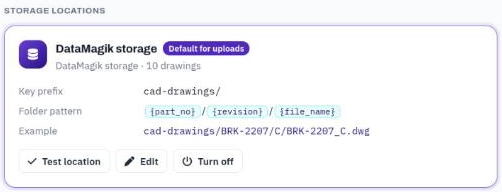
A storage location: its key prefix, folder pattern and an example of where a drawing is saved.
Folder pattern
The folder pattern decides where each file is saved inside the location. It can use the tokens {part_no}, {revision}, {part_key} and {file_name}, and it must end with {file_name}. Left empty, it is {part_no}/{revision}/{file_name}, so drawing BRK-2207_C.dwg for part BRK-2207 rev C is saved as BRK-2207/C/BRK-2207_C.dwg. On DataMagik storage and S3, files sit under the Key prefix (default cad-drawings). Each location card shows an example.
Drawings already in a location
A location can already hold drawings that engineering saved there, for example on a file server. DataMagik finds them by the location's folder pattern:
- Scan location lists everything in the location and adds each file that fits the folder pattern to the library, then says how many files it found, how many drawings it added and for how many parts. Files already listed are left alone. Scan again after engineering adds files.
- When someone opens a part that has no drawings yet, DataMagik also looks for it in each location, in Lookup order: lower numbers are searched first, and the first location that has files for the part is used.
- Tick Read-only for a folder DataMagik should only read: it never writes or deletes there, and uploads go to another location.
Default and limits
- Default for new uploads: uploads go to the default location. Use Make default on a location to change it.
- Largest file (MB): the largest file people can upload; 250 MB unless you change it. A file server's own size limit also applies.
- Formats people can upload: tick formats to allow only those. Leave all unticked to allow every supported format.
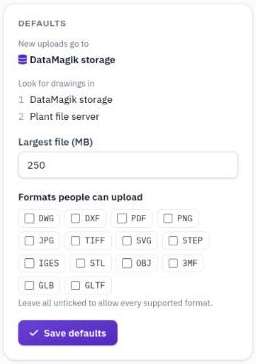
Defaults: where new uploads go, the largest file and the formats people can upload.
Test location
Test location lists the location's folder, writes a small test file, reads it back and deletes it, and reports each step with how long it took. Run it after adding or changing a location.
Turning a location off or removing it
Turn off stops a location being used without losing anything. Remove is offered only for a location with no drawings in it.
Once a location holds drawings, where it points (its key prefix, bucket, region, endpoint, Filesystem Connector or folder) cannot change, because its drawings would no longer be found. To use a new place, add a new storage location. Its name, lookup order, folder pattern, read-only setting, S3 cache and credential can still be changed.