Shipping inside Plex
Shipping inside Plex
Open the shipping workstation over a Plex shipper screen, already loaded with the shipper Plex is showing.
With the DataMagik browser extension, a Ship tab sits on the right edge of the Plex screens you choose. Clicking it slides out the shipping panel: the same workstation as /shipping, opened on the shipper the Plex screen shows. The clerk packs, rates, buys and prints without leaving Plex.
Before you start
- The DataMagik browser extension is installed and signed in. See Browser Extension.
- Shipping is set up and works on the web. See Getting started with the setup wizard.
- To bind the panel you need DataMagik - Builder, the permission that builds automations.
Bind the panel to a Plex screen
The panel is bound with an automation. The automation's linked screens say where the tab appears, and an action of the shipping panel type says where to read the shipper from.
- Open Automations and press Add Automation, or open an existing one. Name it, for example "Ship".
- Under Linked Screens, press Link New Screen. Enter the screen's PCN and its App Path, the path of the Plex screen's address. For the Plex shipper form this is
/Shipping/standardshipping/ViewShipperForm. Fill in the other fields as for any linked screen. - Press Add Action and choose the Action Type Shipping panel.
- In Shipper parameter, enter the Plex URL parameter that carries the shipper on this screen, for example
ShipperKey. The name is matched without regard to case. Without it the panel opens empty and asks for a shipper. - Save the automation.
Repeat Link New Screen for each Plex screen that should have the tab.
What the parameter can hold
- A shipper key: an all-digit value in a parameter such as
ShipperKeyorShipper_Key. - A shipper number: a parameter named like a number, such as
Shipper_No, is read as the shipper number, even when it is all digits. - On a list screen, such as the Plex shipping list, the parameter names a column. The panel reads that column of the first selected row.
Who sees the tab
The tab shows only for people whose role can ship, with Shipping - Ship or Shipping - Admin, at a company that holds the Shipping license. An automation with no permissions attached is open to all of them. If you attach permissions to the automation, only the roles named see the tab.
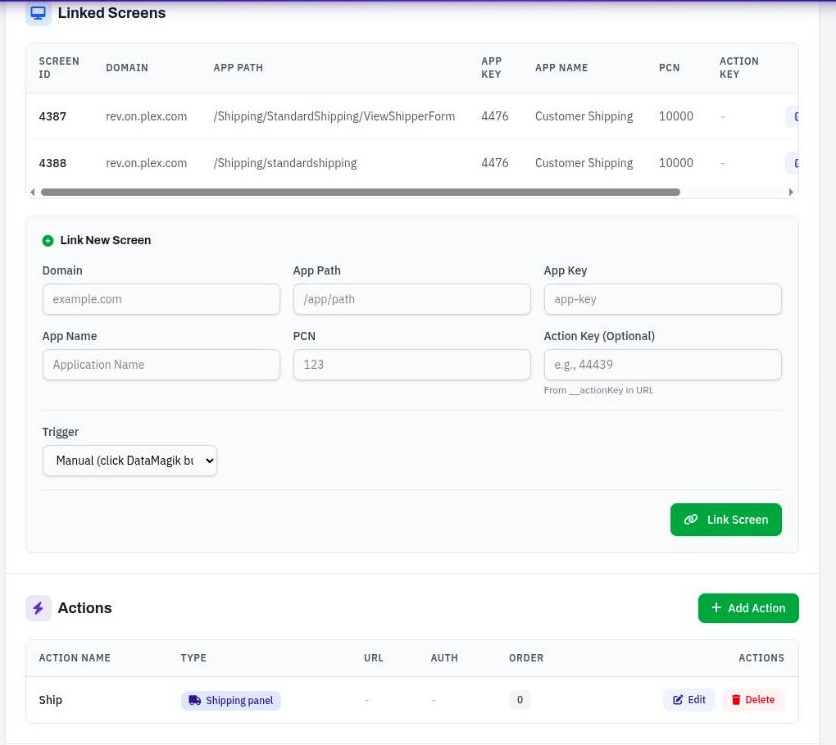
An automation that binds the shipping panel to the Plex shipper form.
What the clerk sees
- On a bound Plex screen, a Ship tab appears on the right edge.
- Clicking it slides out the panel with the shipper already loaded. The site is the one whose PCN matches the Plex screen. A company with one site always uses it.
- The clerk works exactly as on the web: packaging, service, rates, buying, printing and the label list.
When Plex moves to another shipper, the panel reloads with the new one. The panel's header has a reload button and a close button, and Esc closes it.
Everything works the same as on /shipping: the same profile, the same permissions, and the same labels. The transaction log records which actions were taken from Plex. A shipping admin who presses Change on the profile opens the setup in a new tab.
If the panel does not open
- No Ship tab: check the linked screen's PCN and App Path against the Plex address, and that the person's role can ship.
- The panel opens without a shipper: the Shipper parameter is empty or does not match a parameter on the screen. On a list, select a row first.
- The shipping page is taking too long to load. Press Reload.
- This shipping panel is not available to you: the automation's permissions do not include your role.