File Connectors
File Connectors Guide
Connect to remote file systems via FTP, SFTP, and FTPS. Browse files, automate file processing with trigger rules, and integrate with the Script Engine.
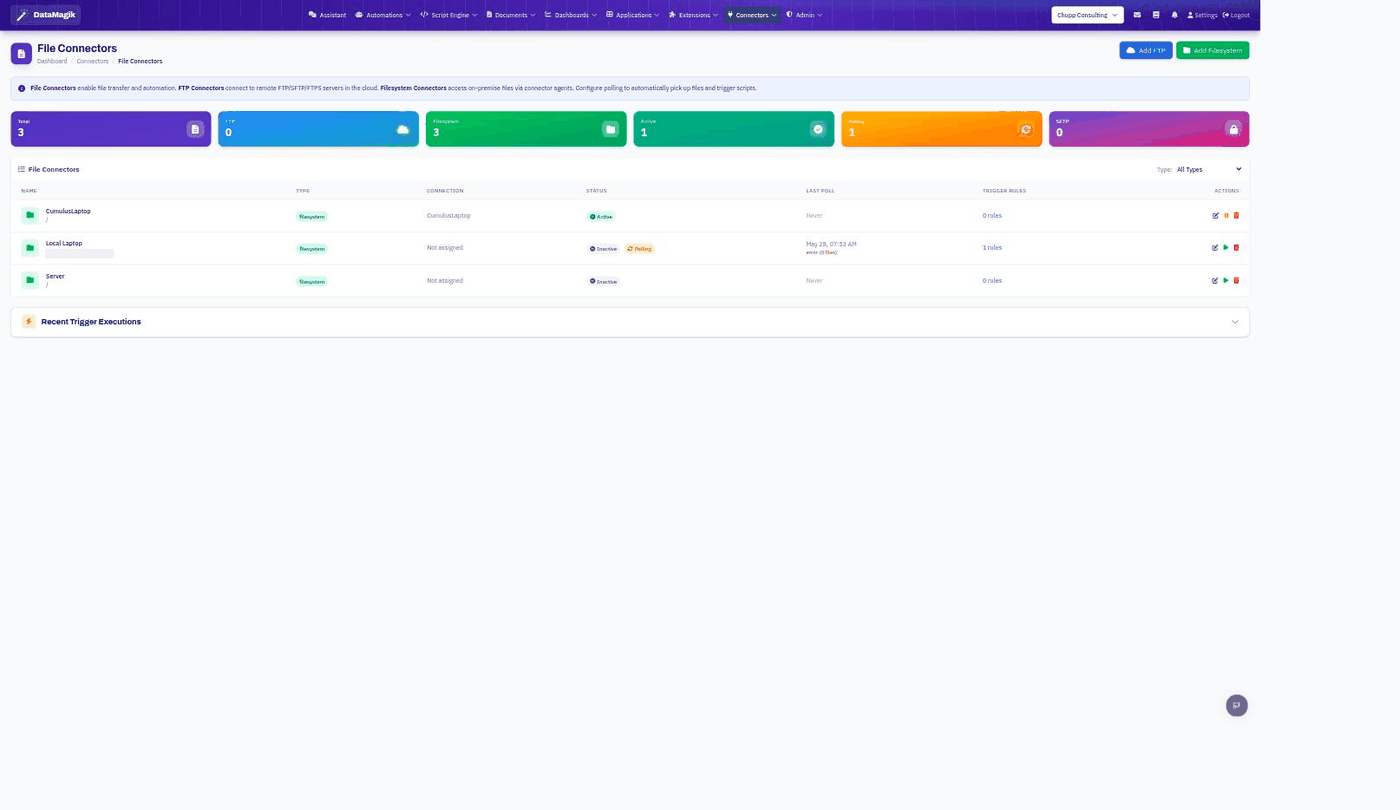
Table of Contents
- Overview
- Connector Types
- Creating an FTP Connector
- Creating a Filesystem Connector
- File Browser
- File Operations
- File Trigger Rules
- Polling Configuration
- Audit Logging
- Best Practices
1. Overview
File Connectors enable DataMagik to integrate with external file systems for automated file processing, transfer, and monitoring. Two connector types are available:
- FTP Connectors — Connect to remote servers via FTP, SFTP, or FTPS protocols
- Filesystem Connectors — Access local or network file systems through on-premise connector agents
Key Features:
- Multiple Protocols — FTP, SFTP (SSH), and FTPS (TLS) support
- File Browser — Visual file browser for navigating and managing files
- Trigger Rules — Automatically process files matching patterns with scripts
- Polling — Interval-based or cron-scheduled file monitoring
- Full Audit Trail — Every file operation is logged with user, timing, and status
- Duplicate Prevention — Tracks processed files to avoid reprocessing
2. Connector Types
FTP Connectors
Connect to remote file servers using standard file transfer protocols:
| Protocol | Default Port | Description |
|---|---|---|
| FTP | 21 | Standard File Transfer Protocol |
| SFTP | 22 | SSH File Transfer Protocol (encrypted) |
| FTPS | 21 | FTP over SSL/TLS (encrypted) |
Authentication Methods:
- Username and password
- SSH private key with optional passphrase (SFTP only)
- SFTP host key verification (Trust-On-First-Use)
Filesystem Connectors
Access local or network-mounted file systems through a DataMagik connector agent:
- Linked to a specific connector site and agent
- Operates within a configured base path
- Can be set to read-only mode to prevent writes and deletes
- Optional printing enabled flag for print job file output
3. Creating an FTP Connector
Step 1: Open the Endpoints tab
Go to Connectors → File Exchange in the main menu and stay on the Endpoints tab. The management forms are below the endpoint list. Creating and editing endpoints requires the DataMagik - Builder permission; a Viewer sees the list without the controls.
Step 2: Click "Add FTP Connector"
Step 3: Configure Connection Settings
| Field | Description |
|---|---|
| Name | Friendly name for the connector |
| Type | FTP, SFTP, or FTPS |
| Host | Server hostname or IP address |
| Port | Server port (defaults based on type) |
| Username | Login username |
| Password | Login password (stored encrypted) |
| Base Path | Root directory for file operations |
| Passive Mode | Use passive FTP mode (recommended for firewalls) |
For SFTP Connections
| Field | Description |
|---|---|
| Private Key | SSH private key for key-based authentication |
| Private Key Passphrase | Passphrase for the private key (if encrypted) |
File Restrictions
| Field | Description |
|---|---|
| Allowed Extensions | Whitelist of file types (e.g., .csv, .pdf, .xml) |
| Max File Size | Maximum file size limit (default: 10 MB) |
Step 4: Test Connection
Click Test Connection to verify the connector can reach the server. Fix any issues before saving.
4. Creating a Filesystem Connector
Filesystem connectors use your on-premise connector agent to access local file systems.
Configuration
| Field | Description |
|---|---|
| Name | Friendly name |
| Site | Connector site with an active agent |
| Connector | Specific agent instance |
| Base Path | Root directory path on the local machine |
| Read Only | Prevent write and delete operations |
| Allowed Extensions | File type whitelist |
| Max File Size | Size limit for uploads |
5. File Browser
The File Browser provides a visual interface for navigating and managing files across all connector types.
Accessing the File Browser
Navigate to Connectors → File Browser in the main menu, or use the Browse files button at the top of File Exchange. Each row in the endpoint list also has its own Browse link, which opens the browser already pointed at that endpoint.
Features
- Browse — Navigate directories across all connected file systems
- Upload — Upload files via multipart upload
- Download — Stream file downloads
- Preview — Read and preview file content
- Create Folders — Create new directories
- Move/Rename — Move or rename files and folders
- Delete — Remove files (with confirmation)
6. File Operations
All file operations are available via API for both FTP and filesystem connectors:
| Operation | Description |
|---|---|
| List | List directory contents with metadata (size, modified date) |
| Read | Read file content with SHA256 hash verification |
| Write | Create or overwrite files (with size validation) |
| Delete | Remove files |
| Move | Move or rename files |
| Copy | Duplicate files |
| Mkdir | Create new directories |
7. File Trigger Rules
Trigger rules automatically process files that match a pattern by executing a DataMagik script.
Creating a Trigger Rule
| Field | Description |
|---|---|
| Name | Rule display name |
| Connector | FTP or filesystem connector to monitor |
| File Pattern | Glob pattern to match (e.g., invoice_*.pdf, *.csv) |
| Script | Script Engine script to execute when files match |
| Post-Process Action | What to do with the file after processing |
| Priority | Execution order (higher runs first) |
| Enabled | Toggle the rule on/off |
Post-Process Actions
| Action | Description |
|---|---|
| Leave | File remains in original location |
| Delete | File is automatically removed after processing |
| Move | File is relocated to a specified archive path |
How Triggers Work
- Polling detects a file matching the trigger pattern
- File metadata is captured (path, size, hash)
- The associated script executes with the file context
- The post-process action is applied (leave, delete, or move)
- The file is recorded as processed to prevent reprocessing
Execution History
View trigger execution history to monitor which files were processed, when, and whether the script succeeded or failed. It is at the bottom of the Endpoints tab, under Recent Trigger Executions.
8. Polling Configuration
Configure how frequently connectors check for new files.
Polling Settings
| Setting | Description | Default |
|---|---|---|
| Polling Enabled | Activate or deactivate file monitoring | Off |
| Polling Interval | Minutes between polling cycles | 15 minutes (FTP) / 60 minutes (filesystem) |
| Cron Schedule | Cron expression for complex schedules | Optional |
Cron Schedule Examples
| Expression | Description |
|---|---|
*/15 * * * * | Every 15 minutes |
0 9 * * MON-FRI | 9 AM on weekdays |
0 */2 * * * | Every 2 hours |
0 6,18 * * * | 6 AM and 6 PM daily |
Note: If both an interval and cron schedule are set, the cron schedule takes precedence.
Failure Handling
- Consecutive failures are tracked per polling job
- Retry backoff is applied after repeated failures
- Error details are recorded for troubleshooting
9. Audit Logging
Every file operation is recorded in the audit log with comprehensive details:
| Field | Description |
|---|---|
| Operation | Type of operation (list, read, write, delete, move, copy, mkdir) |
| Source/Destination | File paths involved |
| File Size & Hash | SHA256 hash before and after operation |
| Triggered By | Source: script, API, UI, schedule, or poll |
| User & IP | Who performed the operation and from where |
| Status | Success, failed, or partial |
| Duration | Operation time in milliseconds |
Review file operation history on the Activity tab of File Exchange. It covers both halves of the exchange, including operations that moved nothing — a directory listing, say — and ones that failed.
10. Best Practices
Connection Setup
- Use SFTP when possible — Provides encrypted file transfer
- Use key-based auth for SFTP — More secure than passwords
- Enable passive mode for FTP — Works better through firewalls
- Test connections after setup — Verify connectivity before creating trigger rules
File Processing
- Use specific file patterns —
invoice_*.csvis better than*.* - Use Move post-process action — Archive processed files rather than deleting
- Set allowed extensions — Restrict file types for security
- Set max file size — Prevent oversized files from consuming resources
Polling
- Use cron for business-hours processing — Avoid unnecessary polling overnight
- Don't poll too frequently — Match interval to how often new files appear
- Monitor execution history — Check for failed triggers regularly
Security
- Credentials are encrypted at rest — Passwords and private keys are stored securely
- Use read-only mode — For filesystem connectors that should only read, never write
- Review audit logs — Monitor for unexpected file operations