Printers
Printers Guide
Configure network printers, manage print jobs, and print labels and documents from DataMagik scripts and automations.
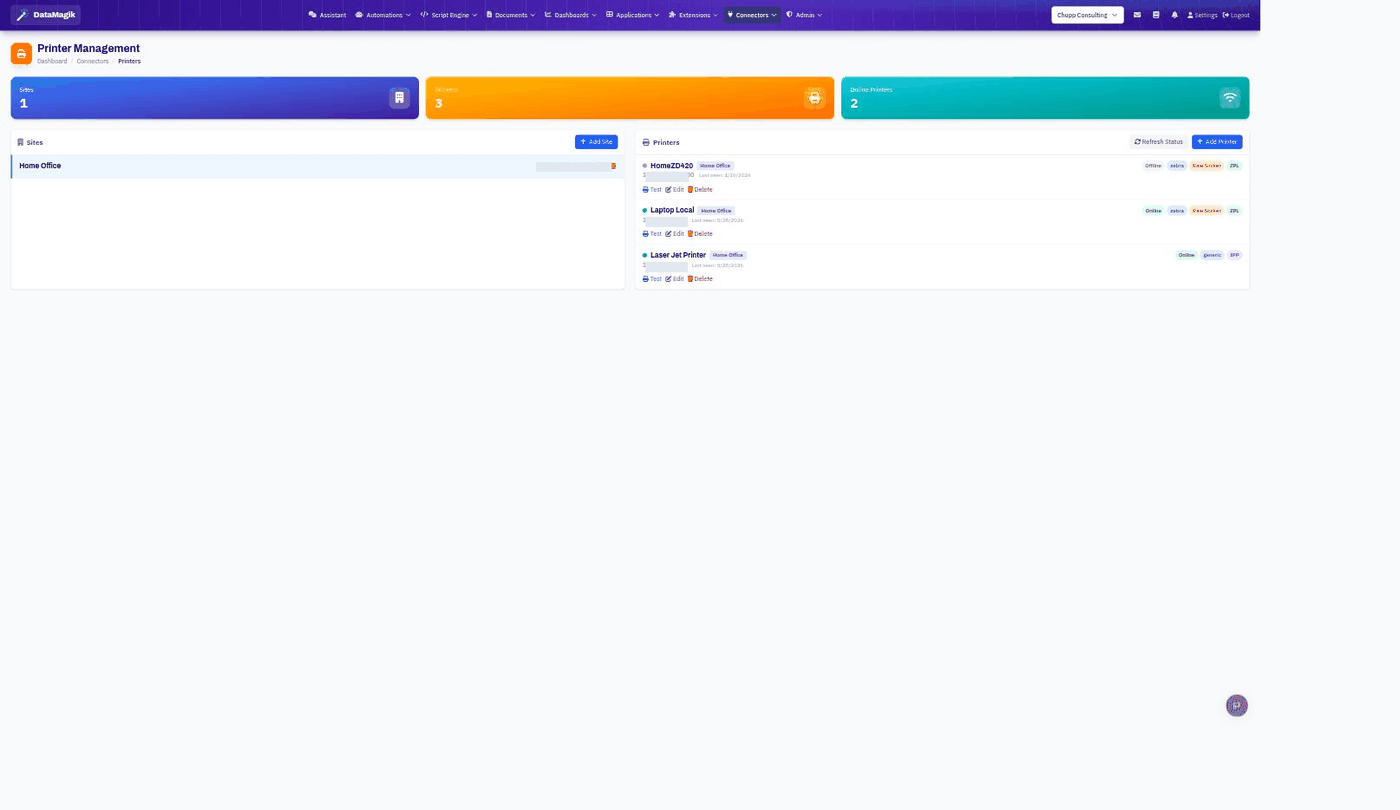
Table of Contents
- Overview
- Printer Types
- Adding a Printer
- IPP Printer Discovery
- Print Jobs
- ZPL Label Printing
- Printing from Scripts
- Job History
- Best Practices
1. Overview
The printing system enables you to send print jobs to network-connected printers through your on-premise connectors. It supports both standard document printers (via IPP) and thermal label printers (via ZPL).
Key Features:
- Multiple Printer Types — IPP network printers and Zebra thermal label printers
- Multiple Formats — ZPL, PDF, and HTML print jobs
- Automatic Failover — Jobs route to alternate connectors if one fails
- Priority Queuing — Higher priority jobs are processed first
- Retry Logic — Failed jobs retry with a short backoff (5s, 10s, 15s)
- Full Audit Trail — Complete job history with timing and status
2. Printer Types
Zebra / ZPL Printers
Thermal label printers that accept ZPL (Zebra Programming Language) commands.
- Protocol: Raw socket (direct TCP)
- Use Cases: Shipping labels, part labels, barcodes, asset tags
- Settings: Darkness, print speed, media type, tear-off offset, print width
Generic IPP Printers
Network printers supporting the Internet Printing Protocol.
- Protocol: IPP
- Use Cases: Documents, reports, packing slips
- Formats: PDF, HTML
- Authentication: Optional username/password and TLS
3. Adding a Printer
Step 1: Navigate to Printers
Go to Connectors → Printers in the main menu.
Step 2: Click "Add Printer"
Click the Add Printer button.
Step 3: Configure Printer Settings
| Field | Description |
|---|---|
| Name | Human-readable name (e.g., "Shipping Zebra", "Office HP") |
| IP Address | Network IP of the printer |
| Port | Printer port (default: 9100 for Zebra, 631 for IPP) |
| Type | zebra or generic |
| Protocol | raw_socket (Zebra) or ipp (generic) |
| Site | Which connector site manages this printer |
For IPP Printers
| Field | Description |
|---|---|
| IPP Endpoint | Print endpoint path (e.g., /ipp/print) |
| Username | Optional authentication username |
| Password | Optional authentication password |
| Use TLS | Enable encrypted connection |
For Zebra Printers
| Field | Description |
|---|---|
| DPI | Dots per inch (203, 300, 600) |
| Darkness | Print darkness level |
| Print Speed | Speed setting |
| Media Type | gap, continuous, or mark |
| Print Width | Label width in dots |
4. IPP Printer Discovery
Automatically discover available print endpoints on network printers using IPP probing.
How to Probe
- Click Probe on a printer or enter an IP address
- The system sends a discovery request through your site's connector
- Discovered endpoints are returned with printer details
Discovered Information
- Available print endpoints (e.g.,
/ipp/print) - Printer name and make/model
- Supported formats (PDF, etc.)
- Color support
- Current state (idle, processing, stopped)
Requirement: At least one online connector must be active at the target site for probing to work.
5. Print Jobs
Job Lifecycle
| Status | Description |
|---|---|
| Pending | Queued, waiting for a connector to pick it up |
| Processing | Connector is actively sending to the printer |
| Completed | Successfully printed |
| Failed | Error occurred — may retry automatically |
| Cancelled | Manually cancelled by user |
Triggering a Print Job
Print jobs can be triggered from:
- Scripts — Using the
connectorsobject (see Section 7) - Automations — As an action in DataMagik Automate
- API — Direct API call with printer ID and print data
Supported Input Formats
| Format | Description |
|---|---|
zpl | Raw ZPL string for Zebra printers |
pdf | PDF document |
pdf_base64 | Base64-encoded PDF |
html | HTML document (converted to PDF for printing) |
Priority & Failover
- Jobs are processed by priority (higher number = higher priority)
- If a connector fails, the job is automatically routed to another connector at the same site
- Failed jobs retry with a short backoff (5s, 10s, 15s) up to the maximum attempt count
- Stale locks (processing for over 5 minutes) are automatically released
Cancelling a Job
Jobs in pending or failed status can be cancelled. Jobs that are actively processing or already completed cannot be cancelled.
6. ZPL Label Printing
Send ZPL commands directly to Zebra printers for high-speed label printing.
Direct ZPL
^XA
^FO50,50^A0N,50,50^FDHello World^FS
^FO50,120^BY3^BCN,100,Y,N,N^FD12345678^FS
^XZ
Template-Based Printing
Use ZPL templates with data placeholders for dynamic label content. Placeholders like {partNumber} are replaced with actual data at print time.
ZPL Preview
Preview ZPL output before printing using the ZPL preview tool. This renders the ZPL as an image so you can verify the label layout.
7. Printing from Scripts
The Script Engine provides a connectors object for printer operations:
function main(context) {
  // List available printers
  const printers = connectors.getPrinters();

  // Get a specific printer
  const printer = connectors.getPrinter("Line1-Zebra");

  // Send raw ZPL
  connectors.printLabel("Line1-Zebra", "^XA^FO50,50^A0N,50,50^FDHello^FS^XZ");

  // Print using a template with data
  connectors.printFromTemplate("Shipping-Printer", "ShippingLabel", {
    orderNumber: context.order_id,
    customerName: context.customer
  });

  // Batch print multiple labels
  connectors.printBatch("Line1-Zebra", "PartLabel",
    context.parts.map(p => ({
      partNumber: p.number,
      serialNumber: p.serial
    }))
  );

  return { success: true };
}
8. Job History
All completed and failed print jobs are archived for audit and troubleshooting.
Viewing Job History
Navigate to Connectors → Print Jobs to view:
- Job status (completed, failed, cancelled)
- Duration (how long the print took)
- Attempt count (how many retries were needed)
- Error messages (for failed jobs)
- Who triggered the job
- Source (API, UI, automation, or script)
Active Jobs
View currently pending and processing jobs per printer to monitor the queue in real time.
9. Best Practices
Printer Setup
- Use descriptive names — Include location and type (e.g., "Dock A - Zebra 4x6")
- Assign to correct site — Ensures jobs route through the right connector
- Use IPP probe — Auto-discover endpoints rather than guessing paths
- Test after setup — Send a test print to verify connectivity
ZPL Labels
- Use templates — Reusable templates with data placeholders are more maintainable
- Preview first — Use ZPL preview before sending to the printer
- Batch for volume — Use
connectors.printBatch()for multiple labels
Reliability
- Multiple connectors per site — Enables automatic failover
- Monitor job history — Check for recurring failures
- Use priority — Set higher priority for time-sensitive print jobs