Scripts in Excel & Power BI
Scripts in Excel & Power BI
A script can be published to a stable, read-only web address that returns its rows as a table. Copy the link, paste it into Excel, load. There is no Power Query code to write and nothing to maintain inside each workbook.
Why this exists
A script webhook is a POST endpoint, and Excel's
point-and-click Data > From Web only issues GET. Those two facts do
not meet, so getting script output into a spreadsheet used to mean opening Power Query's Advanced
Editor and hand-writing M — building the request body, threading an API key into a header, and
polling for the result.
That code then got copy-pasted into every workbook that needed it, so a change to a script's output silently broke files nobody could find. An Excel link replaces all of it with a URL.
Getting script data into Excel
- Open the script in the Script Engine editor.
- Click Excel in the header, beside Webhook.
- Copy the link.
- In Excel: Data > From Web, paste, OK.
- Choose Anonymous when Excel asks how to sign in.
- Load.
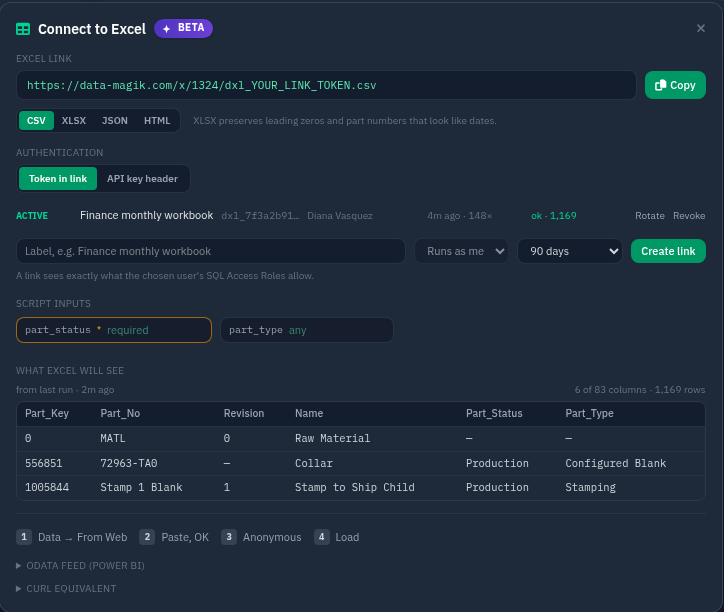
The panel is the whole setup surface — the link, the format, the authentication mode, the inputs, a preview built from the script's last real run, and the Excel steps. There is no settings page to visit first.
If the script takes inputs, fill them in before copying. The link updates as you type, and the panel will not produce a link until every required input has a value — so a link you copied is always complete.
CSV or XLSX?
The panel offers both. CSV is the default because Excel renders it as a finished table immediately.
Choose XLSX when a column holds an identifier rather than a quantity. CSV carries no type information, so Excel guesses as it loads — and the guess is wrong for anything that only looks like a number.
| Value in DataMagik | What CSV becomes in Excel |
|---|---|
00124735 | 124735 — the leading zeros are gone |
3-4 | 4 March — read as a date |
1.5E3 | 1500 — read as scientific notation |
These are not hypothetical: the live Plex parts master in this system contains ten part numbers
beginning with a zero, 00124735 among them. XLSX carries the types, so they arrive
intact. Power BI has no such problem either way, because the OData feed publishes a typed schema.
Choosing an authentication mode
Token in link (default)
The credential is part of the URL, so Excel needs nothing else.
A token in a URL is genuinely weaker than one in a header: it sits in browser history, gets pasted into chat, and travels inside every workbook that saves it. The design pays for that by making the token worth very little on its own:
- One token, one script. It cannot call anything else or read the script's source.
- Read-only. A script marked as a write script can never be published.
- It runs as one named person and sees only what their SQL Access Roles allow.
- It expires — 90 days by default — can be revoked instantly, and is rate-limited.
- Every call appears in the script's execution history.
API key header
The URL carries no credential and the caller sends X-API-Key instead. Stricter, and
always available. In Excel it lives under Advanced in the From Web dialog — a
key/value grid most people never find, which is the reason the token form exists at all.
An administrator can turn token links off for the whole company under Company > Security. Existing links stop working immediately and the panel falls back to header authentication.
Rotating a link
Rotate issues a new token and keeps the old one working for a grace period — seven days by default — so workbooks have time to catch up and nobody has to hunt them all down first. The panel states the exact date the old link stops working.
The person a link runs as is emailed 14 days before it expires.
Connecting Power BI (OData)
Use the OData feed URL from the panel with Power BI's Get Data > OData feed, or Excel's Data > From OData Feed.
- The script must have completed a run first. The schema is generated from a real result, so until the script has produced a table there is nothing to publish and Power BI cannot connect. Run it once from the editor.
- Each row carries a
_rowcolumn. OData requires every row to have a key and a script's rows have no natural one, so the feed adds an ordinal. $filteris not supported and returns an error rather than being ignored. A silently dropped filter would return a full table you believe is filtered. Filter by adding the script's own inputs to the URL instead.$select,$top,$skipand$orderby(one column) all work.- Paging holds one result for five minutes, so page two always matches page one.
Shaping a script for Excel
A script that returns { data: { rows: [...] } } needs
no configuration — which is what most extract scripts already do.
function main(context) {
  const rows = odbc.executeQuery("parts_by_status", { status: context.part_status });
  return { data: { columns: ["Part_No", "Name", "Qty"], rows: rows } };
}
Very large numbers lose precision
JavaScript numbers are exact only up to 9,007,199,254,740,992 (about 9 quadrillion, 16 digits). Past that, the low digits are gone inside the script, before the export ever sees the row — and no format can recover them.
Plex's own keys are comfortably inside that range: across the live parts master here, 83 columns and 1,169 rows, the largest number of any kind is 16,287,149. So a Plex part key is safe as a number.
What is not safe is anything carrying a DataMagik record id — those are 19-digit values — or any figure you have multiplied up into the quadrillions. Return those as strings:
// At risk - a 19-digit DataMagik id as a number loses its low digits
rows.push({ Link_Id: r.link_id });

// Safe - exact, and Excel keeps it as text
rows.push({ Link_Id: String(r.link_id) });
When in doubt, an id you will match on later costs nothing to return as a string.
Columns and their order
Return a columns array beside your rows to fix the order. Without one, columns are
the sorted union of the row keys — sorted rather than the order you wrote them in, because JSON key
order is not preserved once the payload is parsed, and an order that changed between refreshes would
break every workbook bound to the link.
Nested values
An object one level down expands into dotted columns (address.city); anything
deeper, and any array, is encoded into a single cell. The result is always rectangular. If a name in
your columns array holds an object, you get the whole object in one cell — list the
dotted names instead when you want them separated.
Inputs
The query string becomes the script's context. Repeated keys build an array, and
true, false and numbers are converted — except values with a leading zero,
which stay text so part numbers keep them. Declaring a schema under
Settings > Assistant Tool gives the panel typed input fields and makes required
inputs enforced.
When a link stops working
| What you see | What it means |
|---|---|
| Missing required input | A required parameter is not in the URL. The message names it. |
| This link is no longer valid | The token was revoked or has expired. Ask for a new one. |
| Not published to Excel | Excel export was turned off for the script. |
| The user this link runs as... | That person was deactivated or left the company. Re-issue the link. |
| Over the row limit | More rows than the script allows. Add a filter. It refuses rather than returning a short table, because a short table looks complete. |
| Too many refreshes | Past the hourly cap, or several refreshes running at once. Wait a moment. |
| Did not finish in time | The run exceeded 230 seconds. Narrow it with a filter, or turn on caching. |
Columns disappeared from my workbook. The editor shows a warning when a script stops returning columns it used to return — the change that silently breaks every workbook bound to it. Added columns are safe and do not warn.
Finding published data without a developer
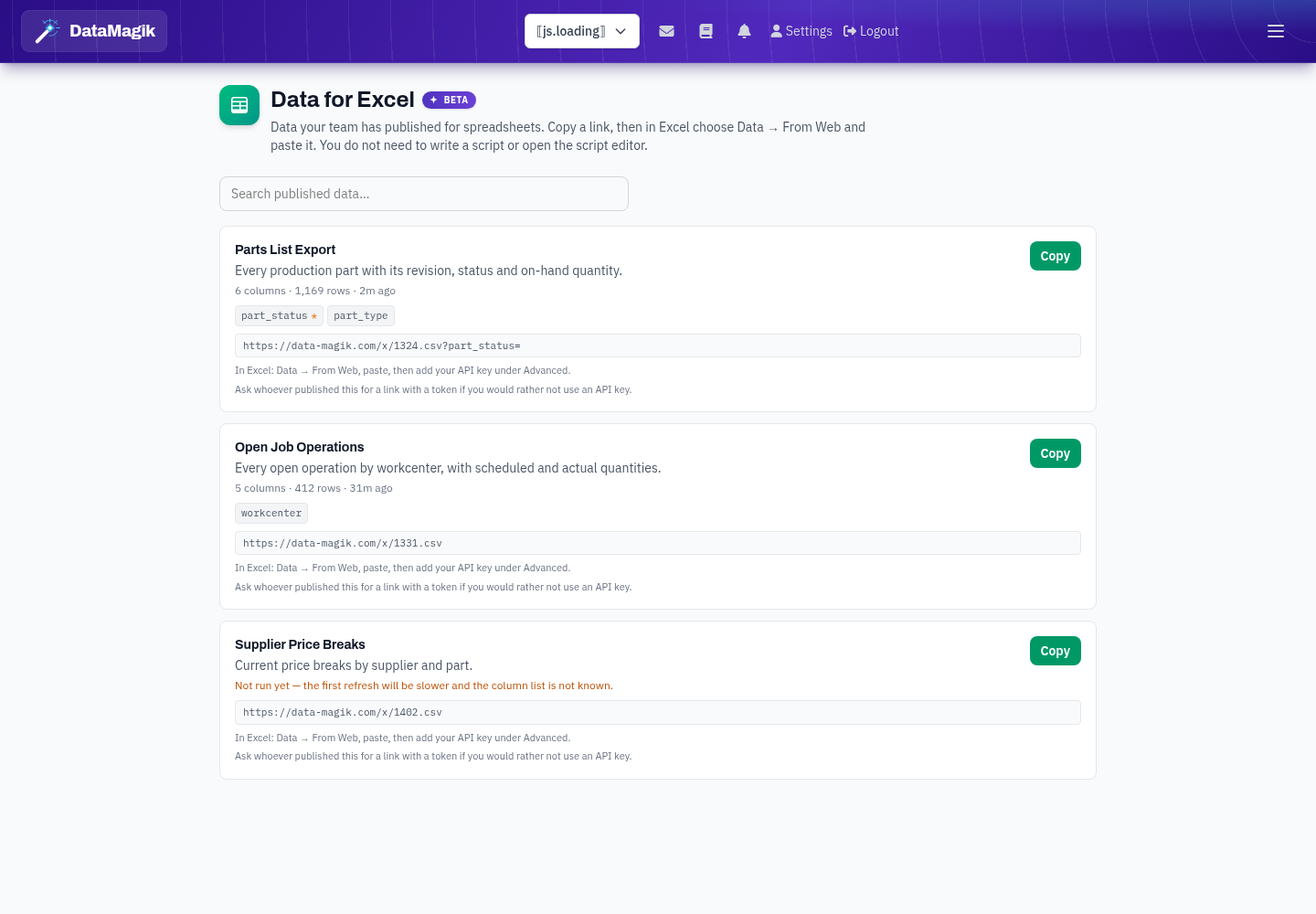
Data for Excel in the main navigation lists everything published in your company, with its description, its inputs, and a copy button. You do not need the Builder permission or the script editor to use it.

For administrators
Excel Links shows every link in the company on one screen: what it reads, who it runs as, who created it, when it was last used, and how the last call actually went — so a workbook that stopped working explains itself. Links can be revoked individually or in bulk.
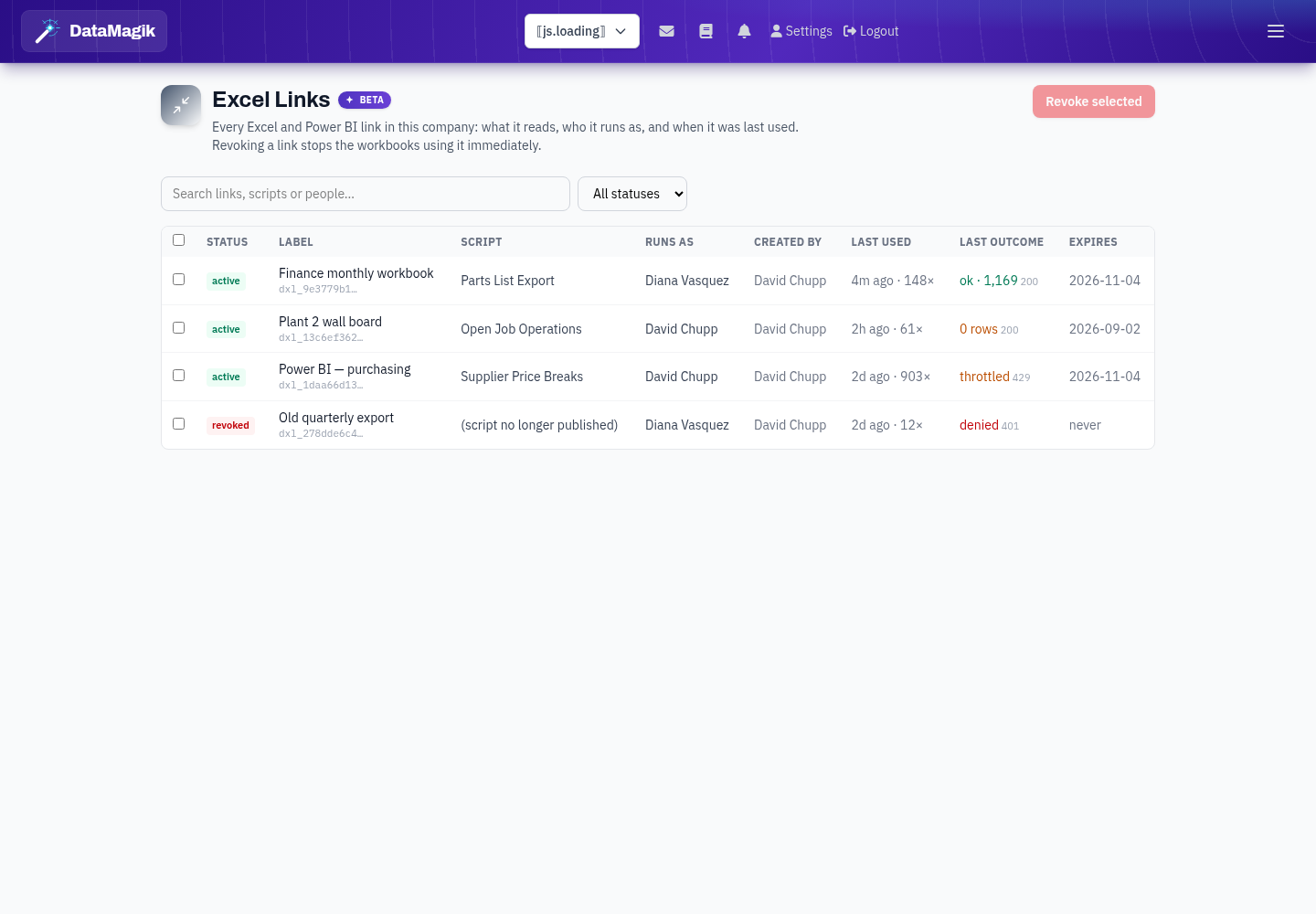
Creating a link that runs as somebody other than yourself requires the DataMagik - Security or Company Manager permission, because the link then carries that person's data access for as long as it lives.
Google Sheets
The same token link works in Google Sheets:
=IMPORTDATA("https://data-magik.com/x/1324/dxl_7f3a2b91c04e9c2.csv")