Script Schedules
Updated Jul 21, 2026
DataMagik AutomateScript Schedules
Run scripts automatically on a recurring schedule — daily reports, periodic syncs, overnight jobs.
Open Script Engine → Script Schedules. Each schedule pairs a script with a cron expression that decides when it runs.
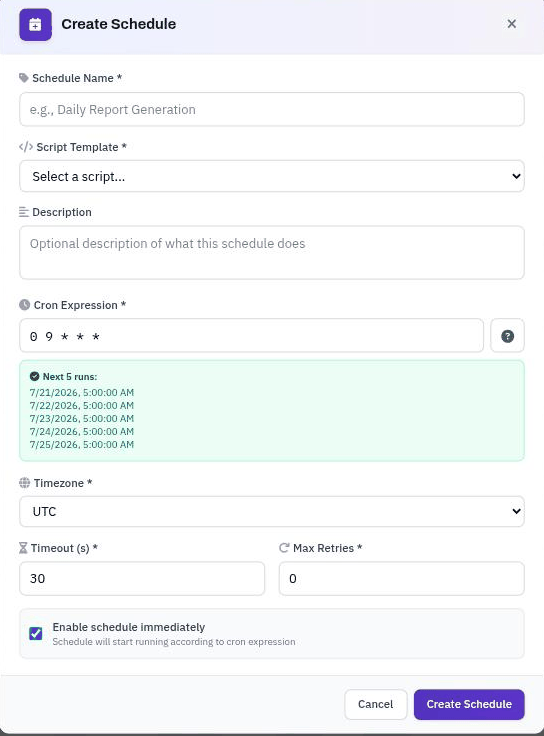
Creating a schedule
- Click Create Schedule.
- Schedule Name — a name you'll recognize in the list.
- Script Template — the script this schedule runs.
- Description — optional note about what the schedule does.
- Cron Expression — when to run. The Next 5 runs preview updates as you type so you can confirm the timing.
- Timezone — the timezone the cron expression is evaluated in.
- Timeout and Max Retries — how long a single run may take, and how many times to retry on failure.
- Enable schedule immediately — start running now, or leave it unchecked and enable it later.
- Click Create Schedule.
Managing schedules
From the schedules list you can Run a schedule now, view its History, Cancel a queued run, Edit it, toggle it on or off with the Status switch, or delete it. Use the search box and the Script and Status filters to narrow the list.
Common cron patterns
| Expression | Runs |
|---|---|
*/15 * * * * | Every 15 minutes |
0 9 * * MON-FRI | 9:00 AM on weekdays |
0 */2 * * * | Every 2 hours |
0 0 1 * * | Midnight on the 1st of each month |
0 6,18 * * * | 6:00 AM and 6:00 PM daily |
Tip: Always check the Next 5 runs preview before saving — it's the quickest way to catch a cron expression that doesn't run when you expect.