Shipping hooks
Shipping hooks
Run your own scripts before or after a shipping transaction: stop a shipment that should not go, change what is sent, or start follow-on work once a label is bought.
Every shipping transaction, such as buying a label, works the standard way. A hook adds one of your company's scripts to it. You set hooks up under Shipping setup → Hooks, which needs Shipping - Admin. Hooks run the same way on the web workstation, inside Plex and on the phone.
Before and after
- Before hooks run first, and the transaction waits for them. A before hook can let the transaction go ahead, change its request, or stop it with a reason the person shipping sees.
- After hooks are queued once the transaction has succeeded and run in the background. They never slow the person shipping down and cannot undo the transaction. Use them for follow-on work, such as sending an email or updating another system.
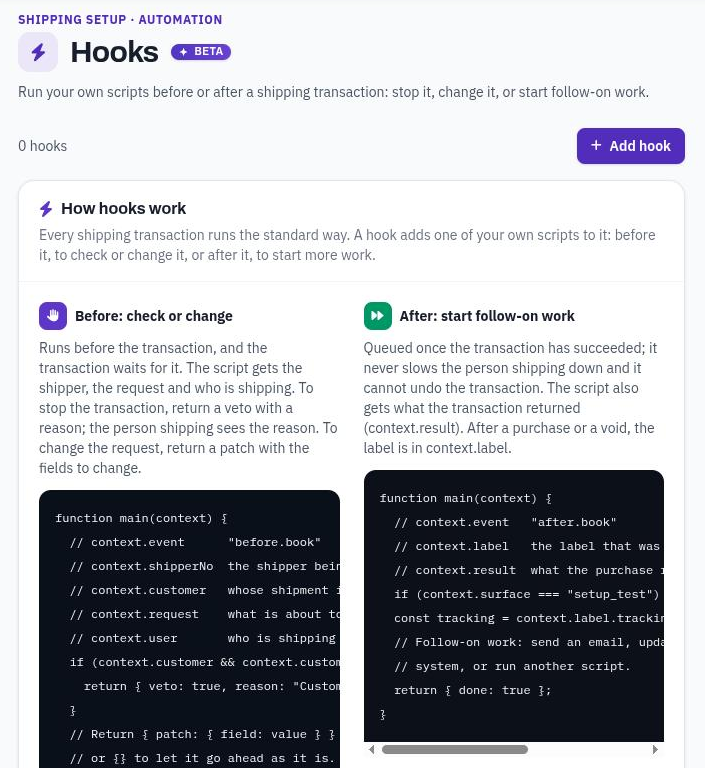
The Hooks screen: what a before hook and an after hook can do.
You can hook these transactions:
- Rate: getting rate quotes from the carriers. A Rate hook does not run again when a label is bought; use a Buy label hook for that.
- Buy label: buying a label, and writing its tracking numbers back to Plex.
- Void label: voiding a label, and clearing it from Plex.
- Return label: buying a return label.
- Manifest: closing out the day with an end-of-day manifest.
- Pickup: scheduling or canceling a carrier pickup.
- Print: reprinting a label or printing customs forms.
- Packaging: saving a container, its dimensions or its master units.
- Track: looking up where a shipment is.
Several hooks on the same transaction run in the order the Hooks screen lists them. Use Run earlier and Run later to change the order.
Setting up a hook
- Write the script under Script Engine → Scripts. It is an ordinary script with a
main(context)function. The Hooks screen lists your company's active scripts. - Open Shipping setup → Hooks and press Add hook.
- Pick the transaction, Before or After, and the Script. Add a Note saying what the hook is for, so the next person knows.
- For a before hook, choose what happens If the script fails:
- Required: if the script fails or runs out of time, the transaction stops and the person shipping sees why.
- Advisory: the failure is noted in the log, the person shipping sees a warning that the advisory hook failed, and the transaction goes ahead.
- For a before hook, set the Time limit, up to 60 seconds. A before hook that takes longer counts as failed.
- Press Test this script to run it once before you save. See Testing a hook.
A new hook starts as Required with a 10-second Time limit, and is Turned on as soon as you save it. To save it without it running yet, switch off Turned on first. A hook that is off is kept but never runs.
If the script fails and Time limit apply to before hooks only. An after hook runs in the background with the script's own time limit, and its failure never affects the transaction.
What the script gets
The script's context holds these fields:
| Field | What it holds |
|---|---|
context.event | The hook's event, for example before.book or after.void. |
context.companyId, context.siteId | Your company and the shipping site, as text. |
context.shipperKey, context.shipperNo | The Plex shipper. Both are always filled on Buy label and Void label. On other transactions they are filled only when the request names the shipper, so they may be empty. |
context.customer | Buy label only: the shipper's customer, as { code, name } from Plex. |
context.request | What the transaction is about to send, for example the chosen service. A before hook can change it, except on Void label. |
context.label | Before and after void, and after buy: the label, with its tracking numbers, cost, service and status. |
context.result | After hooks: what the transaction returned. |
context.user | Who is shipping. |
context.surface | Where it ran: web, plex or mobile. A test from the Hooks screen is setup_test. |
Example: before buying a label
{
  "event": "before.book",
  "companyId": "1",
  "siteId": "1196581223675559937",
  "shipperKey": "13671156",
  "shipperNo": "00448",
  "customer": { "code": "EXAMPLE", "name": "Example Customer" },
  "request": {
    "op": "book",
    "shipper_key": "13671156",
    "site_id": "1196581223675559937",
    "run_mode": "rate_shop",
    "rate_id": "se-1019469439",
    "se_carrier_code": "fedex",
    "service_code": "fedex_ground",
    "no_print": false
  },
  "user": "jsmith",
  "surface": "web"
}
Example: after voiding a label
{
  "event": "after.void",
  "shipperKey": "13671156",
  "shipperNo": "00448",
  "request": { "op": "voidLabel", "idem_key": "13671156-be2a06d1b932b4e8d518535d63b41a9c" },
  "label": {
    "status": "voided",
    "carrier_code": "fedex",
    "service_code": "fedex_ground",
    "tracking": ["794659795710"],
    "cost": 39.46,
    "cost_currency": "usd",
    "void_reason": ""
  },
  "result": { "voided": true, "booking": { "status": "voided" } },
  "user": "jsmith",
  "surface": "plex"
}
The label in a real run carries more fields than shown here. To see every field your script gets, press Test or open a past run (see below).
What the script returns
A before hook returns one of these:
{}: the transaction goes ahead as it is. Returning nothing is the same.{ veto: true, reason: "…" }: the transaction stops. The person shipping sees A shipping hook stopped this: followed by your reason, or The hook gave no reason. if there is none.{ patch: { field: value } }: the transaction goes ahead with those request fields changed. A hook cannot change which transaction runs, and cannot force a second label over a live one. On Void label, changes are not used: a void hook can only stop the void or let it go ahead.
Anything else counts as a failure, including a string, a number, an array or true/false: the script returned something other than {veto, reason, patch}, and the hook's Required or Advisory setting decides what happens. A required hook that fails shows Shipping hook … failed, and it is required. What an after hook returns is not used.
Example: stop shipping to a customer on credit hold
function main(context) {
  if (context.customer && context.customer.code === "ACME") {
    return { veto: true, reason: "Customer on credit hold" };
  }
  return {};
}
Example: after buying a label
function main(context) {
  if (context.surface === "setup_test") return { skipped: true };
  const tracking = context.label.tracking;
  // Send an email, update another system, or run another script.
  return { done: true };
}
Testing a hook
Press Test on a hook in the list, or Test this script in the hook's editor. Test runs a hook whether it is turned on or not. The script runs once, straight away, with the context a real run would get.
That context is built from your company's latest successful transaction of that kind: for Pickup, a scheduled pickup; for Print, a reprint; for Packaging, a saved container. The result says where it came from, for example Built from your latest Void label on shipper 00448, followed by the date and time. Rates and tracking are recorded only when they ran a hook, so their tests often start from your latest label instead. Then the request holds only the shipper or the label. With no shipping at all, the test uses a made-up shipper.
A test is marked so your script can tell: context.surface is setup_test and context.request.test is true. Nothing is shipped and nothing is written to Plex, but anything the script itself does, such as sending an email, still happens unless it checks for a test.
The result shows what the script answered: go ahead, the changes it would make, or the reason it would stop the transaction. Open What the script was given to see the whole context. An after hook runs straight away in a test so you can see what it does. In a real transaction it runs later.
Seeing what a hook was given
The Hooks screen's Recent runs card lists the latest transactions that ran hooks and what each hook did.
Every run of a hook, real or test, is also kept with the script's runs. Open Script Engine → Executions and type the script's name in Script. Hook runs are tagged shipping_hook. Open a run to see:
- Input: the exact context the script was given, including
event, so you can tell which transaction ran it. - Console: anything the script logged with
console.log. - Output: what it returned.
The shipping Transaction log under Shipping setup shows which hooks each transaction ran, how long each took, and how each ended: OK (with the number of fields it changed, if any), Stopped by a hook, Failed or Queued. Turn on Only transactions that ran hooks to see just those. An after hook shows as Queued there; to see how it ended, open its run under Script Engine → Executions.