Who may use a credential
Decide which people may see, run, build with and look after a credential.
Open or Restricted
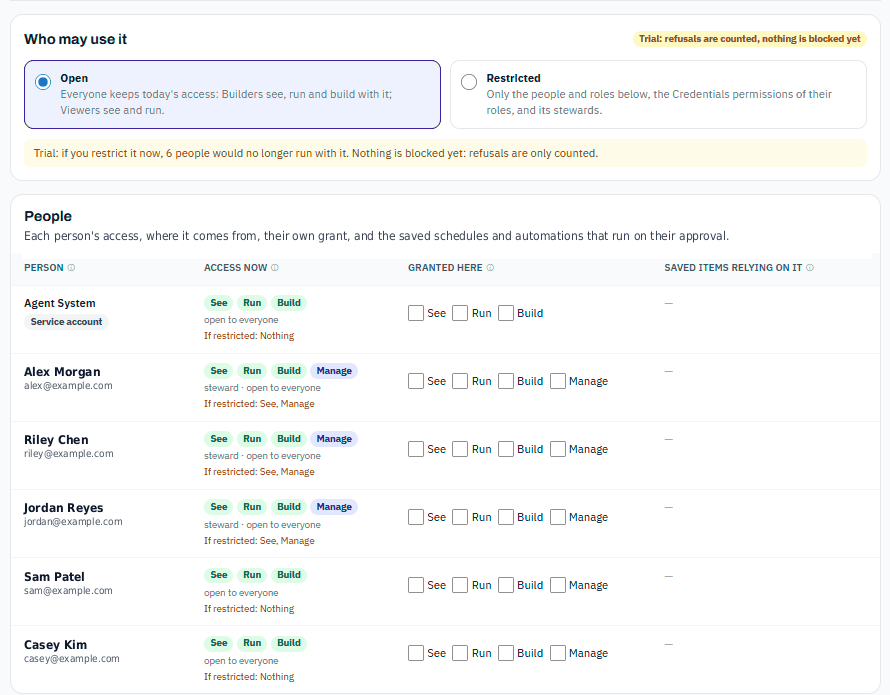
On the credential's rules page, open the People tab. Under Who may use it:
- Open (the default): everyone keeps today's access. Builders see, run and build with it; Viewers see and run.
- Restricted: only the people and roles below, the Credentials permissions of their roles, and its stewards.
While a credential is Open, the People tab shows each person's If restricted: line, so you can see who would lose access before you switch. Switching to Restricted starts a 14-day trial in which refusals are counted and nothing is blocked. See Trial and enforcement.
The four actions
| Action | Lets the person |
|---|---|
| See | See the credential's name and type in lists and pickers. Never the value. |
| Run | Start runs that use it: scripts and automations run on this person's behalf may use it. |
| Build | Save code, schedules and other items that use it. Build includes See. |
| Manage | Be a steward: approve requests, and change who may use it and where it may be sent. Manage includes See. |
None of them reveals the value.
Grant a person or a role
Who can do this: the credential's stewards.
- On the People tab, under Grant a person or a role, choose the Person or role.
- Tick the actions. See and Run are ticked for you.
- Press Grant.
To change a person's grant later, tick or untick their boxes under Granted here. A role grant reaches the people holding the role in this company.
- You can grant people of this company, its parent administrators (in a Site), and this company's roles.
- A service account cannot manage a credential. Give it see, run or build.
- You cannot give yourself Run or Build on a credential you look after. Ask another steward, or an admin of this company when none is named.
Credentials permissions in roles
Three permissions in the Role Manager give access to every restricted credential in the company, so you do not have to grant each one:
| Permission | Gives |
|---|---|
| Credentials - Use | Run: runs this person starts may use restricted credentials. Never reveals a value. |
| Credentials - Build | See and Build: may see restricted credentials and save code on items that use them. |
| Credentials - Manage | Looks after every credential that names no steward (grants, rules and its list of items). |
Most builders need both Credentials - Use and Credentials - Build: testing code and publishing an app need Run and Build together.
Where access comes from
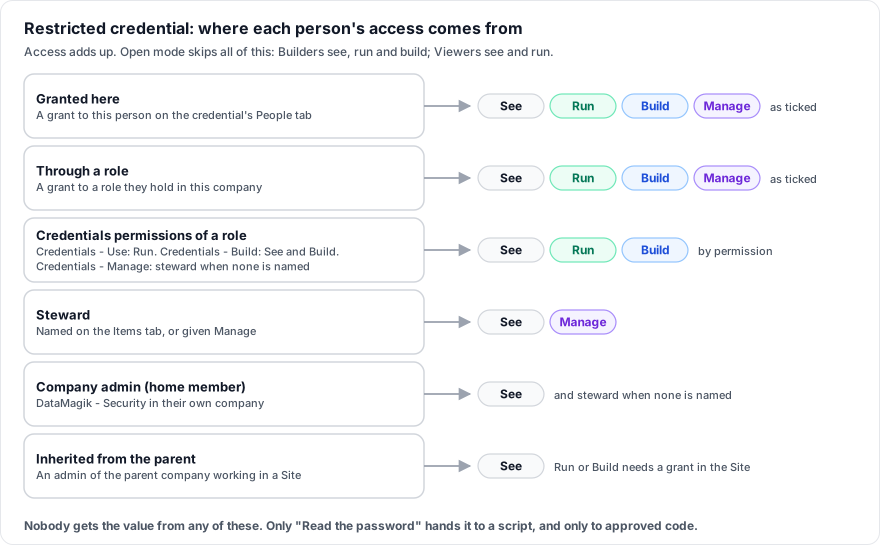
For a restricted credential, the Access now column shows what each person may do and where it comes from. Access adds up.
| Shown as | Means |
|---|---|
| granted here | Given to this person on this page. |
| through a role | A grant to a role the person holds. |
| Credentials permission of a role | Credentials - Use, Build or Manage in one of their roles. |
| steward | Looks after the credential: sees it and manages its rules. To run or build with it, a steward needs Run or Build from a grant or a role, like anyone else. |
| admin | A home member with DataMagik - Security: sees it, and looks after it when no steward is named. |
| parent admin | In a Site, an administrator of the parent company sees it, but needs a grant in this Site to run or build with it. |
| open to everyone | The credential is Open. |
Someone who is not a steward or admin sees only their own row: Your access to this credential. Its stewards and admins see everyone's.
Who is "the person behind a run"?
| What started the run | Whose access is checked |
|---|---|
| A person pressing a button, a dashboard, a form, an app draft or preview | The signed-in person |
| A published app | The app, as approved when it was published. See Published apps and credentials. |
| An API key or connected app | The person the key or connection belongs to |
| A kiosk, Excel link or approval | The person it runs as (an approval: the approver) |
| The assistant or an AI agent | The person the conversation belongs to |
| A test run or the debugger | The signed-in person, who needs Run and Build |
| A script started by another script | The outer run's person: a child never gets more than its caller |
| A schedule, automation, file trigger or hook | The person who saved it, checked when it was saved (a schedule needs Run; an automation needs Run and Build) |
| An email intake | The person who last saved the intake |
| Shop Floor Locations and label connections | No person: the platform's own services are not person-checked |
Saved schedules and automations
A schedule or automation keeps the approval it was saved with. Removing someone's Run does not stop schedules they saved earlier until those are saved again or switched off. The Saved items relying on it column lists them, and a banner warns when a switched-on item was saved by someone who no longer holds Run. Re-save such items as someone who may run them, or switch them off. If the item's code changed since it was saved, its runs are checked against the person behind the run instead.
Build: saving code that uses a restricted credential
Saving or publishing a script, workflow, app, dashboard, ODBC query, hook, file trigger or report needs Build on every restricted credential it holds or names. Saving a schedule needs Run, and saving an automation needs Run and Build. Once the credential is enforced, a save without them is refused, for example:
saving this needs build access to the restricted credential "CARRIER_API", which you do not have; ask a steward of the credential
During the trial the save goes ahead and is counted.
Ask for access
For yourself: open the credential's People tab and use Ask for access: choose See, Run or Build and press Ask for access. The stewards are told in the app and by email, your row shows Asked for access, and when a steward approves, the access is granted to you on this page.
For a script: when a credential your script needs is not available, the editor says why, for example "CARRIER_API" is restricted, and you may not run and build with it. Press Request access: the credential's stewards get a notification and an email, and the request shows on the credential's Items tab for them to approve or decline.
A credential you may not see is never named to you. You see a credential this item needs is not available to you.
Credentials in Sites
Grants are per company. A parent administrator working in a Site can see the Site's credentials, but needs a grant in that Site to run or build with them.