Extraction Profiles
Updated Jul 21, 2026
OCRExtraction Profiles
Teach DataMagik how to read a specific class of document and turn it into structured fields.
DataMagik can extract data from scanned or PDF documents using OCR and AI. An extraction profile defines how one class of document — for example a particular vendor's invoices — becomes structured fields, auto-matched by vendor or sender. A document with no matching profile falls back to a generic AI extraction.
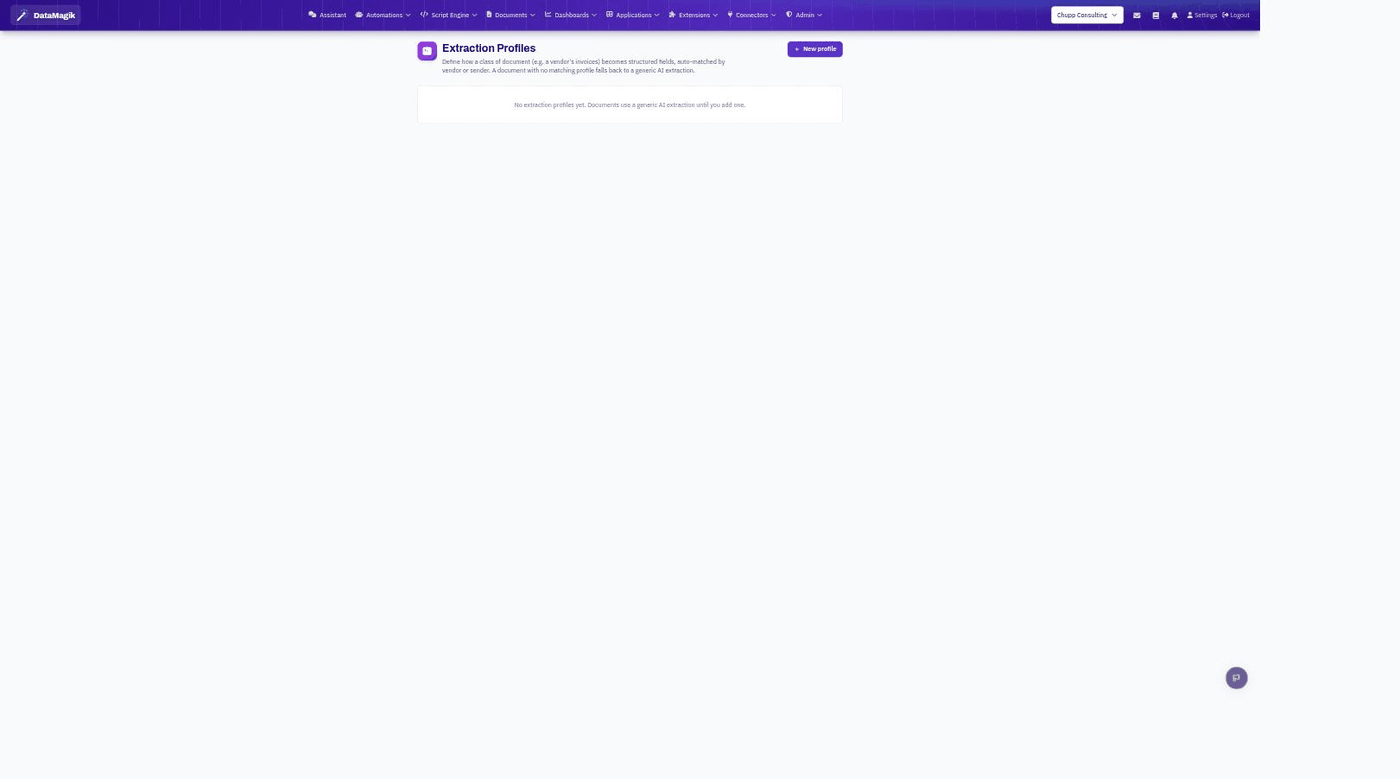
Creating a profile
- Open Extensions → Extraction Profiles and click New profile.
- Give the profile a name and the matching criteria — the vendor or sender it applies to.
- Define the fields to pull out (for example invoice number, date, total) and, where needed, the zones on the page where each field appears.
- Use the designer to test the profile against a sample document, auto-discover fields, and refine the layout.
- Save the profile. Matching documents now extract into those fields automatically.
How matching works
When a document arrives, DataMagik matches it to a profile by vendor or sender. If one matches, it uses that profile's fields and zones; if none match, it falls back to a generic AI extraction so you still get structured data.
Related: OCR providers (the engines that read the documents) are configured separately by an administrator.