Workflows in Production
Workflows in production
A saved workflow is a Script Engine script, so it runs and is managed like one. This page covers the ways a workflow runs for real, and how to keep an eye on it.
Real runs always use the last saved version. Changes on the canvas take effect when you save. Pinned data and breakpoints only affect test runs, and the "Really…" test-run boxes do not matter outside test runs: a real run writes to Plex, sends emails and prints labels.
Schedules
The simplest way to run a workflow by the clock is a Schedule trigger. Saving the workflow creates a schedule named Workflow schedule, which you can see on the Script Engine's Schedules page, and keeps its time in step with the trigger each time you save. If you switch that schedule off on the Schedules page, it stays off when the workflow is saved again. Removing the trigger removes that schedule.
You can also add schedules to a workflow by hand on the Schedules page, like any script; Schedule it… in the editor's ⋮ menu takes you there. Schedules you add by hand are never changed by saving the workflow.
A scheduled run gets as long as the workflow's Timeout (seconds) in Workflow settings.
API calls
Other systems call a workflow exactly as they call a script: POST /api/script-engine/scripts/<workflow id>/execute, with an API key in the X-API-Key header. Use a Manual / API trigger; its Parameters tab has Copy curl (JSON) and Copy curl (file upload) buttons with the right address filled in.
- The request body becomes the trigger's item: a body of
{"order": "SO-1001"}is{{ $json.order }}in the next step, and{{ $trigger.order }}anywhere. - Add
?wait=syncto wait for the run to finish and get its answer in the same call. If the wait runs out, the run carries on and still appears in Executions. - Without
?wait=sync, a slow run answers straight away with an execution id to look up later.
Shaping the answer with Respond to Caller
By default a caller gets the workflow's result: the items of the last step that ran. To choose exactly what comes back, add a Respond to Caller step:
- Respond with: JSON, Text, or A file (a generated document or an uploaded file). A file comes back as a download with its own file type.
- Status code: such as 200, or 404 when nothing was found.
- Headers: only X-… headers and Cache-Control are passed on.
Files over 10 MB cannot be returned to the caller. If the run fails, the caller gets an error answer with success: false and the error message.
Integrations
Add a workflow to an Integration (Script Engine › Integrations) the same way as a script: on the integration's page, type its name in Add scripts. Every workflow is tagged workflow, so a tag rule (Also include any script tagged workflow) brings in every workflow, including new ones.
The integration then shows the workflow's runs and failures with the rest of its scripts.
Run history
Every run, including test runs from the editor, is recorded in Executions like any script run. A run fails when any step fails (and its "When this step fails" setting is Stop the workflow), or when it reaches a Stop with Error step. Failed runs count as failures everywhere: in Executions, in Integrations, and for When a Workflow Fails alerts.
The error message starts with the name of the step that failed, for example Get orders: Plex returned 503. To see the run step by step, run the workflow from the editor with the same input: the canvas shows every step's items. Executions shows a workflow run's result as data, not as a picture of the steps.
After a test run, Open in Executions in the Test run panel goes straight to that run.
Alerts: When a Workflow Fails
Build one alerting workflow that hears about every failure:
- Create a workflow with a When a Workflow Fails trigger.
- Choose what to Watch: every workflow and script, every workflow, or only the ones you name.
- Add a Send Email or Teams / Slack Message step, using
{{ $json.failed.name }},{{ $json.failed.error }},{{ $json.failed.failed_step }}and{{ $json.failed.link }}. - Save.
Test runs never start it, and neither do its own failures.
Using a workflow as an AI assistant tool
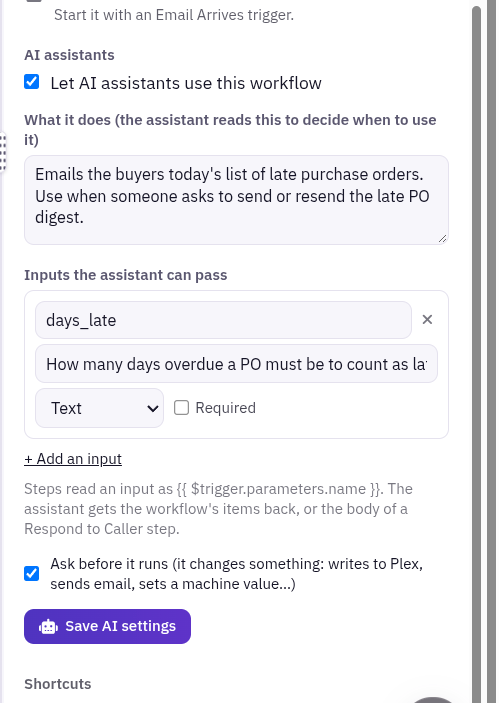
A workflow can be a tool an AI assistant uses, such as "look up a container by serial number". In the editor, click an empty part of the canvas to open Workflow settings, then find AI assistants:
- Tick Let AI assistants use this workflow.
- Fill in What it does. The assistant reads this to decide when to use the tool, so be specific.
- Under Inputs the assistant can pass, click + Add an input for each value the assistant should supply: a name (letters, digits and _), what it is, a type (Text, Number or True / false), and whether it is Required.
- Leave Ask before it runs ticked if the workflow changes anything: writes to Plex, sends email, sets a machine value. The assistant then asks for approval before each run. It starts ticked.
- Click Save AI settings. This saves at once and does not create a new workflow version.
- Add the workflow to an assistant under its Script tools.
Steps read an input as {{ $trigger.parameters.name }}. The assistant gets the workflow's items back, or the body of a Respond to Caller step.
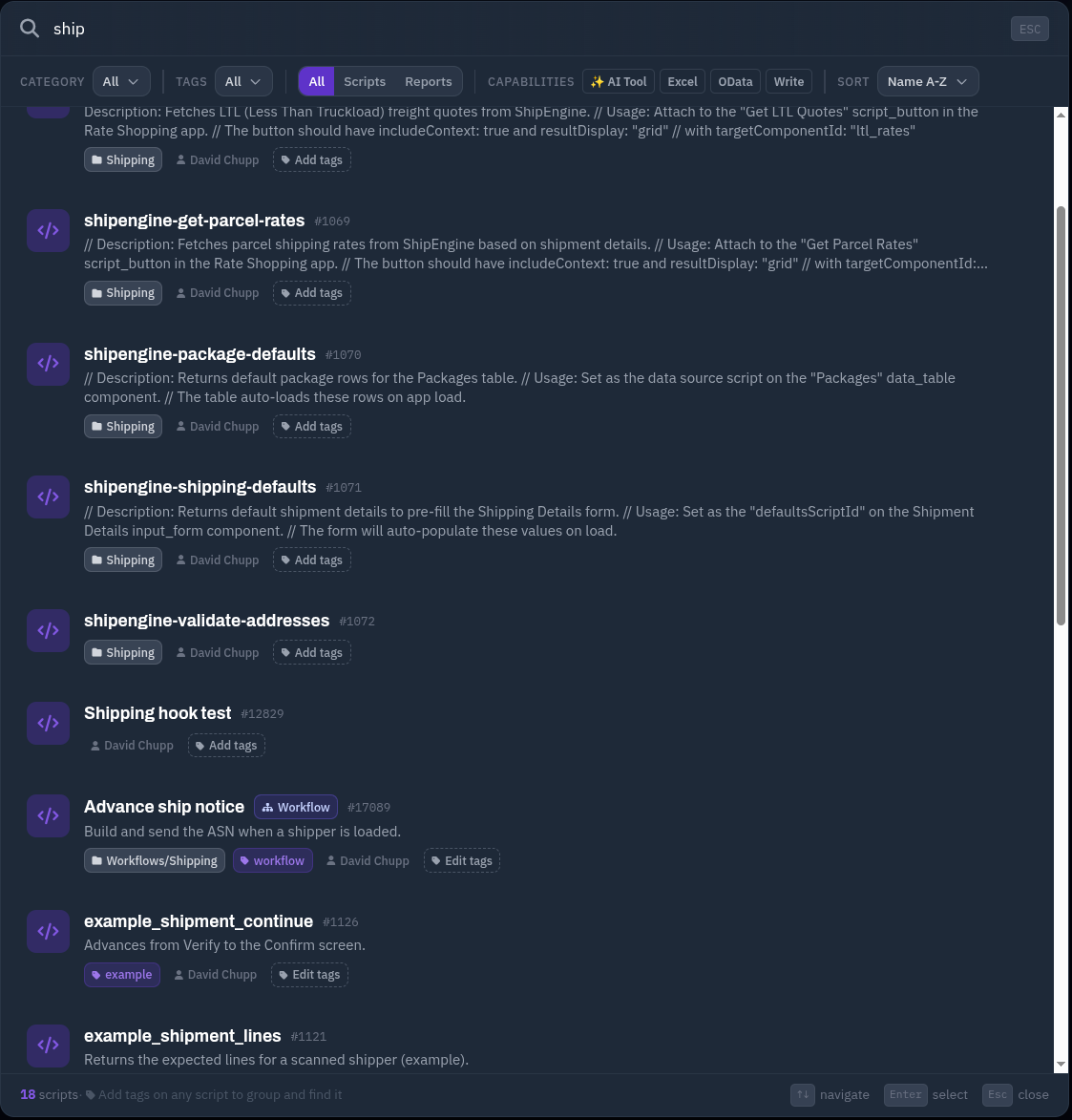
Opening a workflow from the Script Engine
Workflows appear in the Script Engine alongside scripts. In the Script Engine's search, a workflow has a Workflow badge, and clicking it opens the workflow editor. Shift+click opens its script in the Script Engine instead.
There, a banner says the code is generated from the canvas and is read-only. The code cannot be edited or saved from the code editor; Open in the workflow editor takes you back. The script's Excel, webhook, run and history panels still work.
Excel: Connect to Excel and Data for Excel
A workflow can feed a spreadsheet: Excel refreshes a read-only link, and the workflow's result items become the sheet's rows.
- In Workflow settings › Use this workflow from › Excel, click Connect to Excel. The Script Engine opens on the workflow's Connect to Excel panel.
- Tick Publish this script to Excel and Power BI, choose a format, and create a link.
- Published workflows are listed on Data for Excel, where your team can copy the link and use Data → From Web in Excel.
Values added to the link's address as query parameters reach the workflow as {{ $trigger.name }}. A workflow whose AI settings have Ask before it runs ticked is treated as one that changes data, and cannot be published to Excel.
Other places that run workflows
Workflow settings › Use this workflow from lists them all:
- Dashboards and apps: choose the workflow as a widget's or app's data script. The items arrive as rows.
- Automations: choose it in a Script action and tick "Wait for completion" to use its answer.
- DataMagik Mobile and the shop floor: a Platform Hook trigger.
- Machines: a Tag Crosses a Limit trigger.
- Email: an Email Arrives trigger.
The MCP workflows tool
If your team uses DataMagik through an AI client connected by MCP, the workflows tool can work with workflows:
| Action | What it does |
|---|---|
node_types | Lists every step type and its fields. |
list / get | Lists workflows, or reads one with its canvas and current version. |
validate | Checks a workflow and returns its problems and generated code, without saving. |
create / save | Creates a workflow, or saves a new version. Passing the version it read stops it overwriting someone else's save. |
test_run | Runs a test run with the same protections as the editor: emails captured, Plex and other writes held back. |
The tool refuses any workflow that writes a PLC tag. It cannot delete workflows, move them between folders, or change their AI settings.