Signing In
Updated Jul 21, 2026
Getting StartedSigning In
Access your DataMagik account securely.
Open your DataMagik site and you'll land on the sign-in page. You can sign in with your DataMagik username and password, or with a linked Google or Microsoft account.
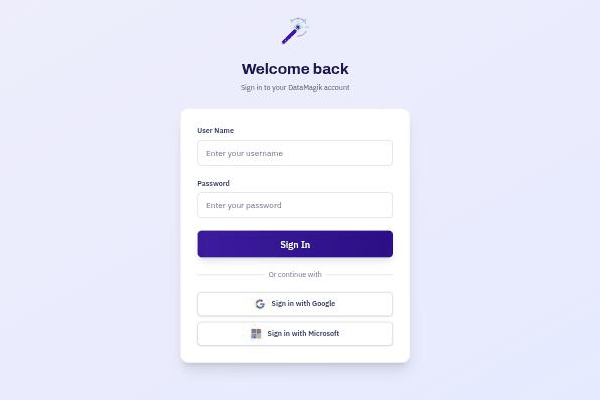
Signing in
- Enter your User Name and Password, then click Sign In.
- Or choose Sign in with Google or Sign in with Microsoft to use single sign-on, if your company has it enabled.
Multi-factor authentication
If your account has multi-factor authentication (MFA) enabled, you'll be asked for a one-time code from your authenticator app after your password. You can set up MFA and manage backup codes from your account security settings.
Trouble signing in?
If single sign-on returns you to the login page, sign out fully and try again. For a forgotten password, use your company's password-reset process or contact your administrator.