Shipping a shipper on the web
Shipping a shipper on the web
Find a shipper, check its packaging, choose the service, buy and print the label, and close out the day, all on the shipping workstation.
Open Shipping → Shipping workstation (/shipping). The page works top to bottom: choose the site, find the shipper, check the packaging and the service, rate, buy, print.
Permissions: the workstation needs Shipping - Ship or Shipping - Admin. Buying, voiding, return labels, manifests and pickups also need Shipping - Buy or Void Labels. A shipping admin also sees a Settings button that opens Shipping setup.
Choose the site
Pick the plant in Site. Each site shows its name and PCN. A company with one site has it chosen already. Changing the site clears the shipper and reloads the lists.
Find the shipper
Quick scan
Scan a label into Quick scan, or type it, and press Go. It accepts:
- a shipper number,
- a container serial: the shipper the container is loaded on opens,
- a master unit (overpack) number: the shipper its boxes are on opens,
- a truck or trailer number: with one shipper on the truck, that shipper opens. With several, the truck list opens with that truck expanded.
If a value is both a shipper and a truck, or both a shipper number and a container serial on different shippers, the page asks which one you meant. A shipper that has shipped or is not due yet still opens by scan or typed number.
How a barcode is read is set by your scan patterns, under Shipping setup → Scan patterns.
By shipper and By truck
Below the scan box, choose By shipper or By truck. The page remembers your choice.
- By shipper lists the open shippers due today or in the 30 days before, oldest first. Each row shows the customer, carrier, truck and trailer, the due date and how many lines are loaded. A shipper past its date is marked Late, and a fully loaded one Loaded. Shippers that shipped today are folded under Shipped today.
- By truck lists the active trucks, with the trailer, carrier, due date and Shippers on it. Open a truck to see its shippers.
Type in the search box to filter the list. Press Enter when one shipper is left to open it. Press Refresh to read the list from Plex again.
An open shipper older than 30 days is not listed. Type or scan its number to open it.
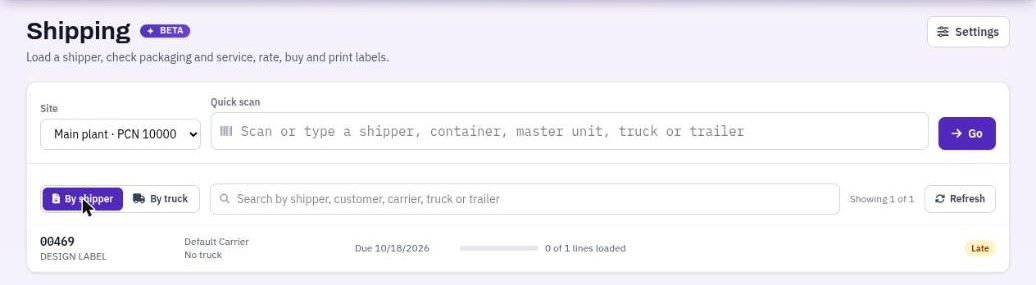
Finding a shipper: Quick scan and the By shipper list.
The shipper
Once a shipper is open, the finder folds into a bar with the shipper number, customer, truck and trailer. If the truck carries other shippers, each one is a chip you can click to switch. Find another opens the finder again. The page address holds the shipper, so a reload or the Back button keeps it.
The Shipping profile box names the profile this shipment uses and Why this profile. A shipping admin can press Change to open Profile assignment. If the profile buys test labels, a banner says TEST labels: this profile uses sandbox carrier accounts, so nothing is billed.
The Shipment panel shows Ship from, Ship to, the Carrier, the Plex service, the Freight terms and the Ship date, with the shipper's lines.
Messages from the checks appear as colored boxes: red stops the label, amber is a warning, gray is information. Each one says why and how to fix it.
Packaging
Each overpack ships on one label, and each loose box ships on its own label. The Packaging panel shows how the shipper ships now, for example Ships as 3 labels: 2 overpack(s), 1 loose box(es).
Move boxes
- Select a box.
- Under Move to, choose another overpack, Loose (own label), or New overpack.
Press Add overpack for an empty one. Give each overpack an Overpack type. Leave Scale weight blank to use the type's tare plus the contents, or enter what the scale says. Remove takes an overpack away and leaves its boxes loose.
Moves stay on this screen until you save them. The panel says This layout was changed on this screen and is not saved in Plex. Rates and labels on this page use it. Reloading the page loses the changes. Use Plex's layout throws them away.
Save the layout to Plex
- Save layout writes moves and type changes on existing overpacks, as your shipping profile allows. New overpacks wait for Build in Plex.
- Build in Plex creates the new overpacks in Plex as master units, with their boxes on them, and saves the layout. Every overpack with boxes needs a type first.
The profile decides how much is written: nothing, only new overpacks (the default), new overpacks and type changes, or everything, including moving boxes between existing overpacks and closing empty pallets. If you moved boxes and the profile does not write that, you are told.
Buying a label with unsaved changes builds the new overpacks in Plex as part of the purchase.
Edit a box
With a box selected, Box details shows its Container type and Gross weight. Press Save box to Plex to write the change at once.
Dimensions
A carrier rates by size. A container type with no dimensions shows Container type type has no dimensions, so its boxes cannot be rated. Enter the Length, Width and Height and press Save dimensions.
The dimensions are written to the container type in Plex when your PCN grants Container_Type_Update (2360) and the site writes to Plex. Otherwise they are saved in DataMagik and reused for that type. A value in Plex always wins.
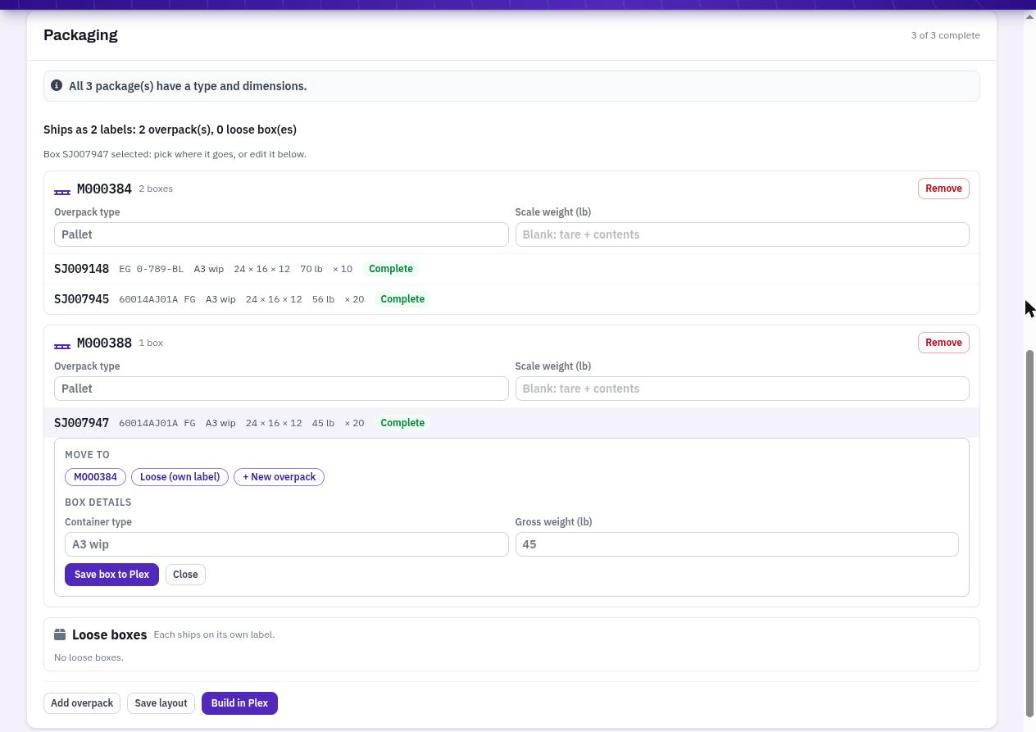
The packaging editor, with a box selected.
Carrier, service and rates
Shipping mode
- Confirm the order's carrier ships with the carrier and service Plex has on the order. The Locked from the order box shows the Carrier, the Plex service and the Carrier service it is booked as.
- Rate shop compares the connected carriers so you can pick a rate.
You can switch between them only if your profile allows it. The panel also shows Billing: Our account, or the customer's or a third party's account. See Who pays.
Service for this shipment
If the profile lets people pick the service, choose it in Service for this shipment. Press List services to load the services your carrier accounts offer. As configured uses the service mapped from Plex.
If the Plex service is not linked to a carrier service yet, and the profile does not allow picking, the shipment cannot be rated. A shipping admin links it under Shipping setup → Carrier services.
Get rates
Press Get rates. The table shows Carrier, Service, Days, Total and Notes. In Rate shop, use Sort rates to show the Cheapest or the Fastest first, and choose a rate.
- Rates in the ship-from country's currency are compared on price. Rates in another currency are listed after them, under Quoted in another currency, so not compared on price.
- A carrier price holds for about 13 minutes. The page shows how old the prices are. When you buy, the carrier is asked for the price again. If it changed, you are told the old and the new price, and the new one is charged.
- If Plex's ship date has passed, today is used.
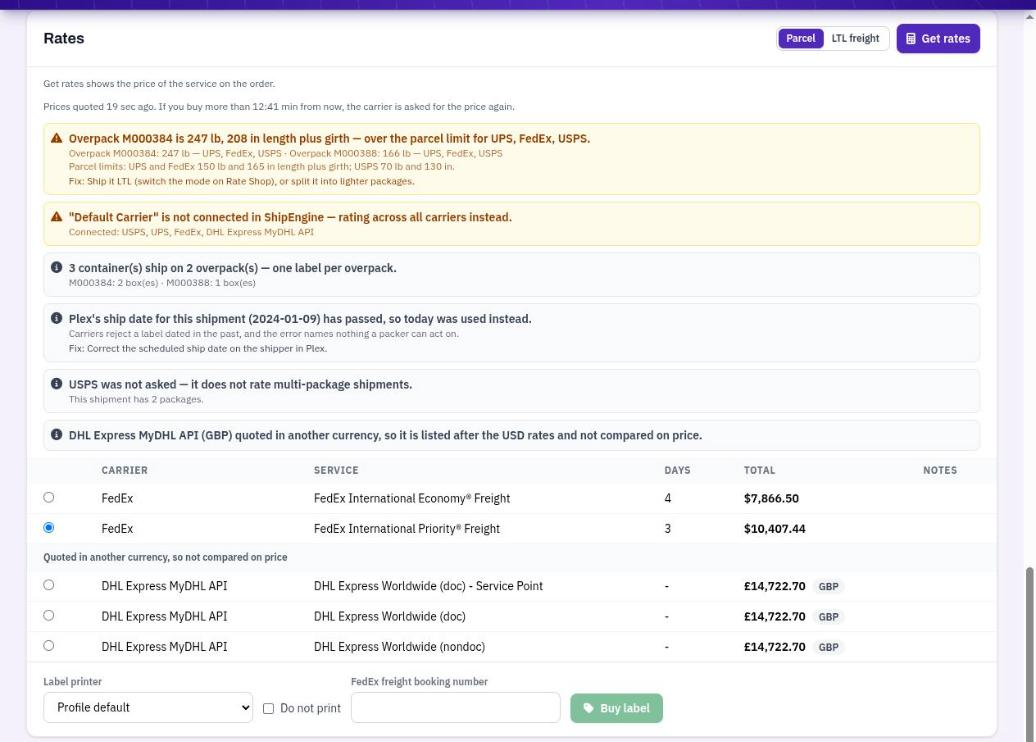
Rates from two carriers, cheapest first.
FedEx international freight
FedEx International Priority Freight and International Economy Freight need the booking number FedEx gave when the freight was booked. Enter it in FedEx freight booking number. Buy label stays off until it is filled.
Buy the label
Press Buy label and confirm. The confirmation names the carrier, service, shipper and price, and says This charges the carrier account. On a test profile it says the label is a TEST and nothing is billed.
When you buy:
- The printer is checked, so you do not pay for a label that cannot print.
- The carrier is asked for the rate again and the label is bought once.
- The label is printed.
- DataMagik writes to the Plex shipper: the tracking number and the freight cost, the tracking number on each package, and any new overpacks.
A shipper can have one active label at a time. To buy another, void the first one.
While the site's Plex dry run is on, step 4 is skipped and each message says what would have been written. A test label is never written to Plex.
Printing
- Label format: ZPL (label printer) for a thermal label printer, or PDF. You can choose it only if your profile allows. Otherwise the profile's format is used.
- Label printer: Profile default or another printer, if your profile allows. Otherwise the page says which printer labels go to. Tick Do not print to skip printing.
- If your profile prints more than one copy, the page says how many.
Parcel labels in ZPL print automatically. PDF labels are opened from the label list and printed from the browser.
The printer must be ready: for a ZPL label, the printer must be online and set up as a ZPL label printer. If your print agent reports it offline, or it is not a ZPL printer, nothing is bought. Pick another printer or a PDF label. See Printers.
The label list
Labels lists every label bought for the shipper, with Bought, Service, Tracking, Total and Status. Badges mark a TEST label, a Return label, and a label that is Not in Plex.
- View label opens a PDF label. View form opens a customs form.
- Reprint sends a ZPL label to the label printer again.
- Download ZPL saves the label file.
- Track shows the carrier's status, the estimated delivery and the tracking events.
- Void asks the carrier to refund the label and clears what booking wrote to Plex: the shipper's tracking and freight and the package tracking. If another label on the shipper is still active, its tracking is kept.
- Return label buys a prepaid return label for a domestic shipment, one per box, as a PDF to send to the customer. The carrier may charge for it.
- Send to Plex appears on a label marked Not in Plex. It writes only the steps Plex did not take, and says what was written and what was not.
- Release appears on a purchase marked Outcome unknown: check the carrier account. See below.
An outcome that is unknown
While a label is being bought, its row says Being bought…. If the carrier never says whether it bought the label, the row says Outcome unknown: check the carrier account. The carrier may have charged you for a label that is not recorded here, so DataMagik will not buy another until you check.
- Open your ShipEngine account and look under Labels for this shipment.
- If a label was bought there, void it there.
- Press Release and confirm. The shipper can then be booked again.
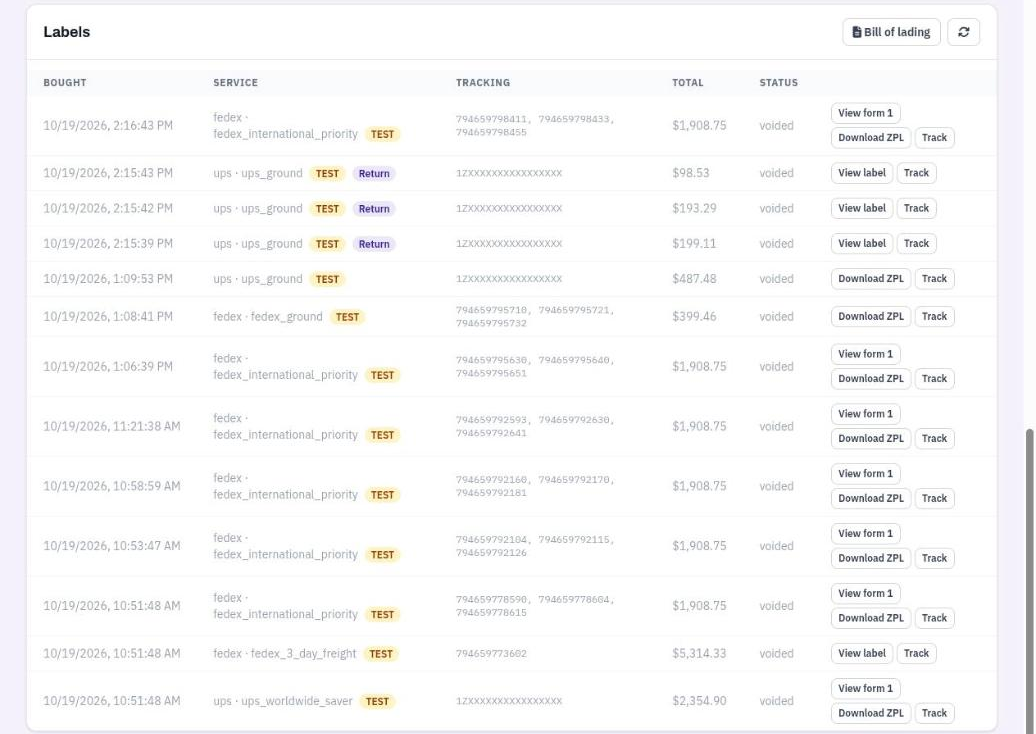
The label list, with each label's actions.
Customs
For a shipment that crosses a border, a Customs panel lists each part with its Description, Quantity, Value, HS code and Origin, and what is Missing. Rows with something missing are highlighted. See International shipments and customs.
End of the day: manifests and pickups
At the bottom of the page, Manifests & pickups works on the Ship date you choose. It starts on today.
Manifests
A manifest closes out the day's parcel labels with each carrier. Voided, LTL and return labels are left out. The section lists the labels not yet on a manifest, by carrier. Press Create manifest and confirm. The carrier is told these labels ship that day. Press View manifest to print it. Some carriers close out electronically and have no form to print.
The day is the profile's Time zone day. A label goes on the manifest for the day it was bought.
Pickups
To have the carrier collect this shipper's labels:
- Set the window in From and Until. They start at 13:00 and 17:00, in your computer's local time, on the ship date above.
- Fill in Contact name, Contact phone and Contact email, or leave them blank to use your name and the site's ship-from phone and email.
- Add Notes for the driver if you need to.
- Press Schedule pickup for this shipper's labels and confirm.
One pickup covers one carrier account. The list shows the pickups of the last two weeks, with the carrier's confirmation number. Press Cancel pickup to cancel one.