Apps, dashboards and AI chat
Apps, dashboards and AI chat
Use your company's DataMagik apps, dashboards and AI assistants inside DataMagik Desktop, with your DataMagik account.
The DataMagik platform part of the menu, Apps & dashboards and AI chat, comes from your DataMagik account. Everything else, your Plex credentials, uploads, custom fields, routines and workflows, works without it, because it runs on this PC.
Signing in
If you activated DataMagik Desktop with your DataMagik account, you are already signed in. If you activated it with a license key, each of these screens shows Sign in to DataMagik:
- Enter your Email and Password and choose Sign in to DataMagik. If your account uses a second step, choose where your code comes from, enter the Code, and choose Verify and sign in.
- Or choose Use an API token instead and paste a token from your DataMagik profile (it starts with
dcp_). - Or sign in in your browser with Microsoft or Google.
Apps & dashboards
Open Apps & dashboards to see the apps and dashboards your company built in DataMagik that you have permission to use.
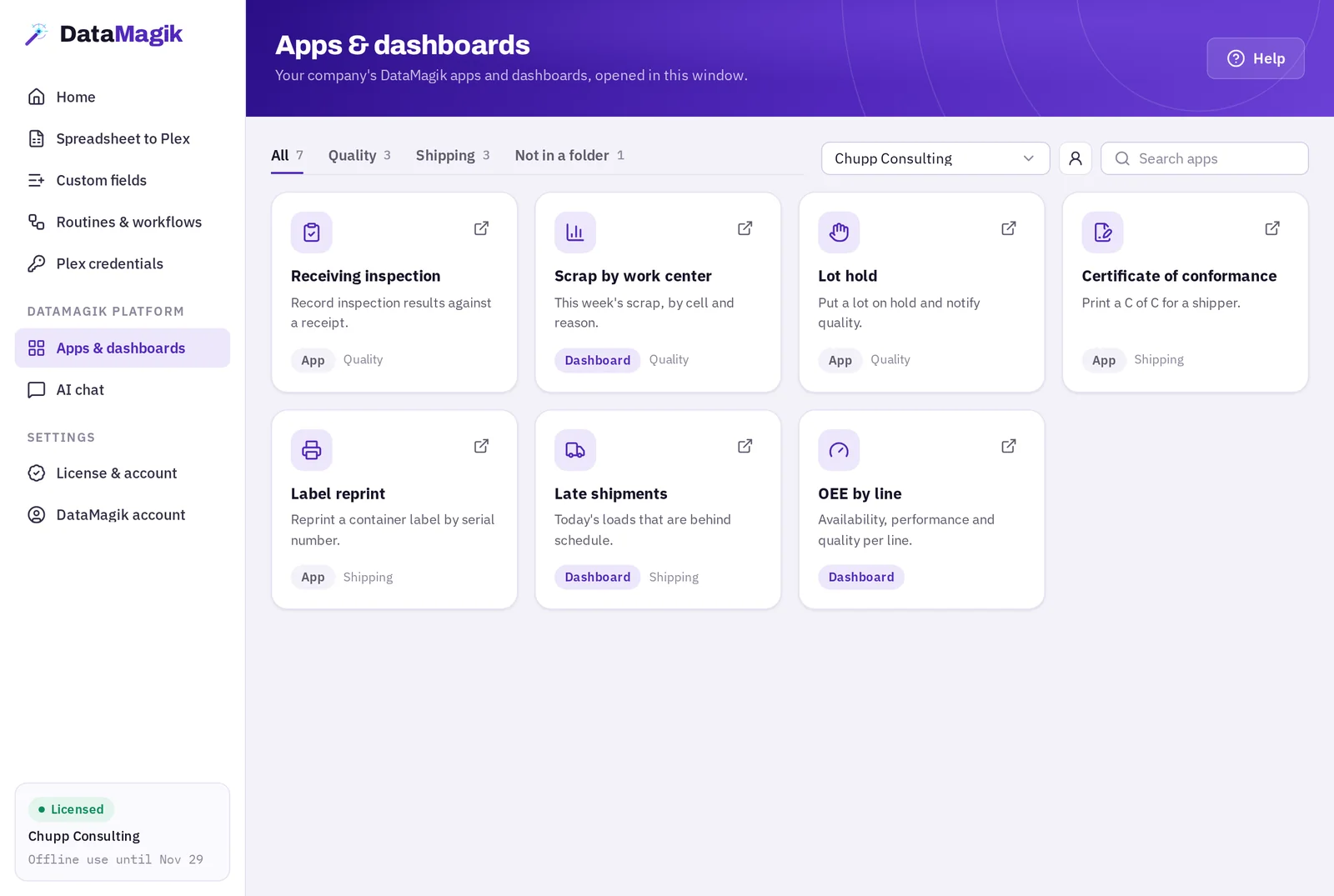
Each card is an app or a dashboard, with its folder.
- The tabs show them by folder. Search apps looks at names, descriptions and folders.
- Choose a card to open it in the DataMagik Desktop window. All apps takes you back to the list, and the reload button opens it again.
- Choose the arrow in a card's corner, or Open in your browser, to open it in your web browser instead.
If the list is empty, there are no apps or dashboards for that company yet, or none you have permission to use. Apps and dashboards are built on the DataMagik website.
AI chat
Open AI chat to ask your company's DataMagik assistants about your Plex data. Answers can include charts and files to save.
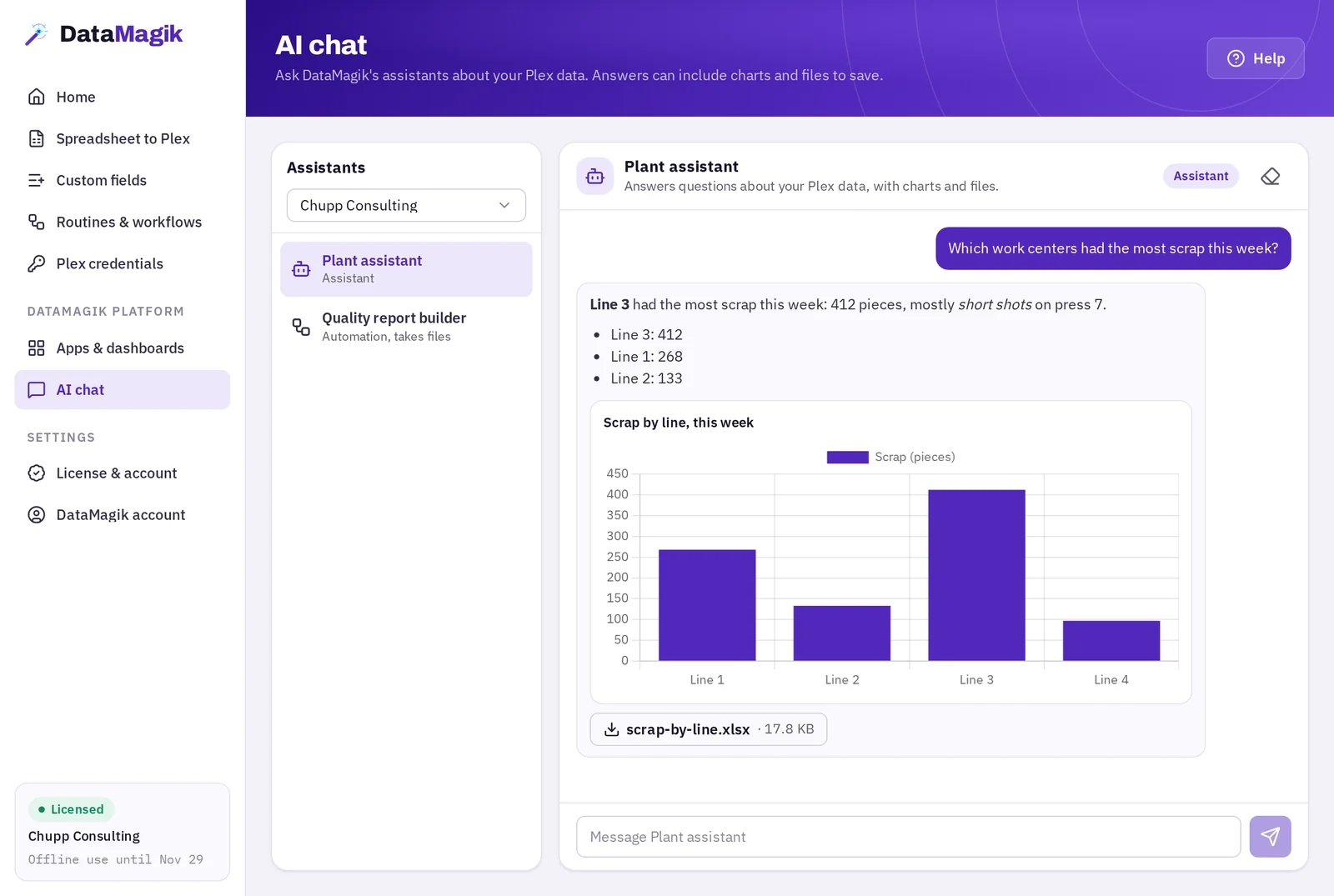
An answer with a chart and a spreadsheet to save.
- Choose an assistant under Assistants.
- Type your question in the box at the bottom and choose send. Try an example question fills one in for you.
- For an assistant that takes files, use the paperclip to attach spreadsheets or PDFs.
- Choose a file in an answer to save it to this PC. Files from an assistant are kept for a limited time; if one can't be downloaded, ask again to get a new copy.
The eraser icon clears the conversation. If no assistants are listed, an administrator adds them on the DataMagik website.
Switching company
If your account belongs to more than one company, choose the company in the list on Apps & dashboards, AI chat or DataMagik account. The apps, dashboards and assistants change to that company's.
Activated with your account? Then DataMagik Desktop is licensed through the company you are signed in to, and switching company also moves the license. A company whose plan doesn't include Desktop is refused, and you stay on the company you had.
DataMagik account
Open DataMagik account (under Settings in the menu) to see who is signed in, how they signed in, and the company.
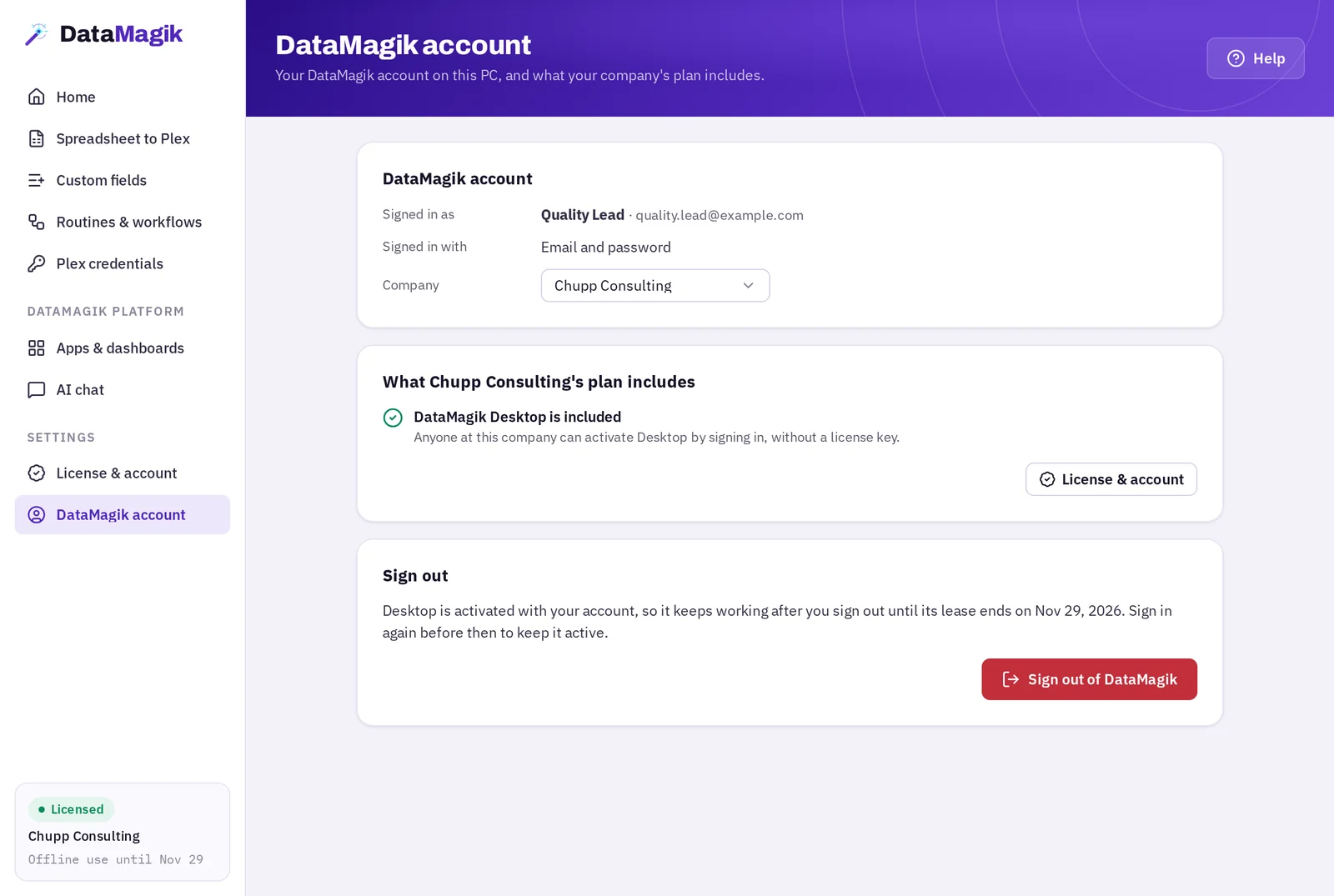
Your account, your company's plan, and Sign out.
- What (company)'s plan includes says whether DataMagik Desktop is included. If it is, anyone at that company can activate Desktop by signing in, without a license key. If not, activate with a license key, or ask your DataMagik administrator to add it to the plan.
- Sign out of DataMagik signs this PC out. Apps & dashboards and AI chat then ask you to sign in again.
Signing out never deactivates DataMagik Desktop. With a license key, uploads, custom fields and routines keep working as before. Activated with your account, Desktop keeps working until its offline time ends (the date is shown); sign in again before then to keep it active. To free this PC's seat, use Deactivate this PC on License & account; see Getting started with DataMagik Desktop.